
4 Ways to Fake Your Location in Chrome in 1 Minute

Nothing is more annoying than being blocked from videos, websites and online services just because of your real geographic location. Luckily, you can easily fake your location in Chrome to bypass all these regional restrictions.
Here, we outline 4 proven techniques — from Chrome’s built-in DevTools to powerful third-party tools — so you can choose the best way to fake your Chrome location effortlessly.

How Does Chrome Track My Location?
You might think Chrome only approximates your location, but in reality, Chrome uses multiple layers of information to pinpoint it accurately.
- Use of GPS: If you’re browsing from a mobile phone or laptop with a GPS chip, Chrome can request GPS coordinates. This provides the most accurate location (often within a few meters) and is the hardest to spoof purely within the browser.
- Use of IP Address: Your Internet Service Provider (ISP) assigns an IP address mapped to a geographic region. Websites and Chrome can quickly determine your city or country from your IP, even if you deny GPS access.
- Cookie Tracking: Sites track information via cookies, which can include location data from past visits. When combined with browser fingerprinting (screen resolution, time zone, language settings, etc.), websites can identify your location with remarkable accuracy, even when GPS and IP signals conflict.
Understanding these three signals is important because some location spoofing techniques only affect one of them, leaving the others unchanged and still detectable.
Method 1: Spoof Your Chrome Location on Any Device with One Click
If you need a fast, effective way to spoof your location across any device, MocPOGO Location Changer is the answer. It changes your device’s GPS coordinates system‑wide, so Chrome (and all other apps) receives the fake location. Easy to use, MocPOGO works on computers and mobile devices alike.
Why MocPOGO is the Top Choice
1. One‑Click Teleport Anywhere
Enter a city, address, or GPS coordinates, then hit “Teleport”. No more fiddling with browser settings or multiple extensions. Whether you’re a gamer, a web developer, or just want to appear in another city without leaving home, one click instantly changes your location for Chrome and all other apps.
2. No Jailbreak or Root Required
Traditional spoofing methods often require jailbreaking (iOS) or rooting (Android), which can compromise security and void your warranty. MocPOGO needs neither. Just download, connect your device, and start spoofing – your warranty and security stay intact.3. Realistic Movement Simulation
Static GPS coordinates can raise suspicion. MocPOGO’s movement simulation lets you set a route and speed – from a slow walk to a high‑speed drive – creating a natural GPS trail that avoids detection.
4. Wireless Spoofing via Bluetooth Mode
Use your Android to spoof your iPhone GPS wirelessly. After a simple Bluetooth pairing, select a location on your Android device and your iPhone location will be changed instantly.
5. Compatible with Location‑Based Games and Social Apps
MocPOGO is designed for apps with tight GPS verification, including games (Pokémon GO, Monster Hunter Now) and social media (Twitter, Snapchat, Instagram). Its spoofing technology keeps you under their radar, delivering a seamless experience.
6. Favorites & History
Save a history of your visited locations and mark favorites for quick recall. Jump between them instantly, saving time and effort.

168,282 people have downloaded it.
- Import GPX routes to simulate natural routes.
- Built-in cooldown timer to avoid soft bans.
- Support GPS joystick to play AR game on PC.
- Works with the official Pokémon GO app
- Multi-Device control up to 15 devices.
- Support the latest iOS 26/Android 16.
How to Fake Chrome Location with MocPOGO in 3 Simple Steps
Step 1 Download MocPOGO for Windows or Mac from the official website. The program will install and launch automatically. Connect your iPhone or Android device via USB.
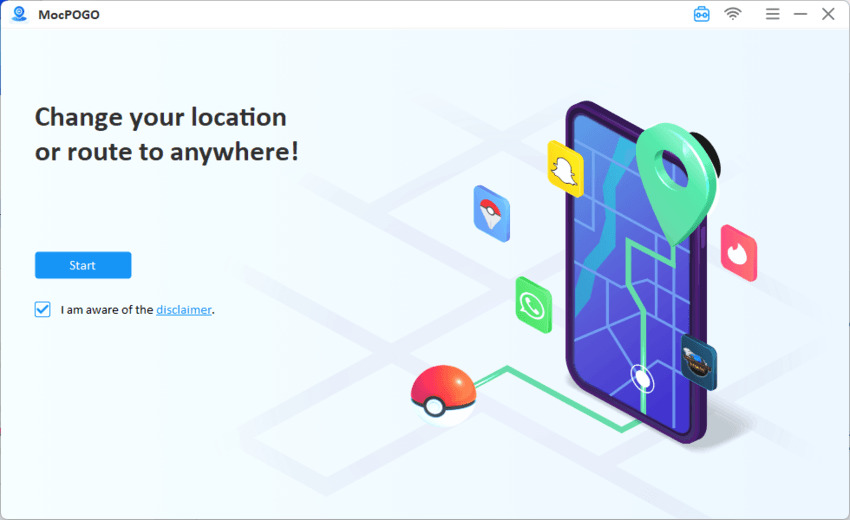
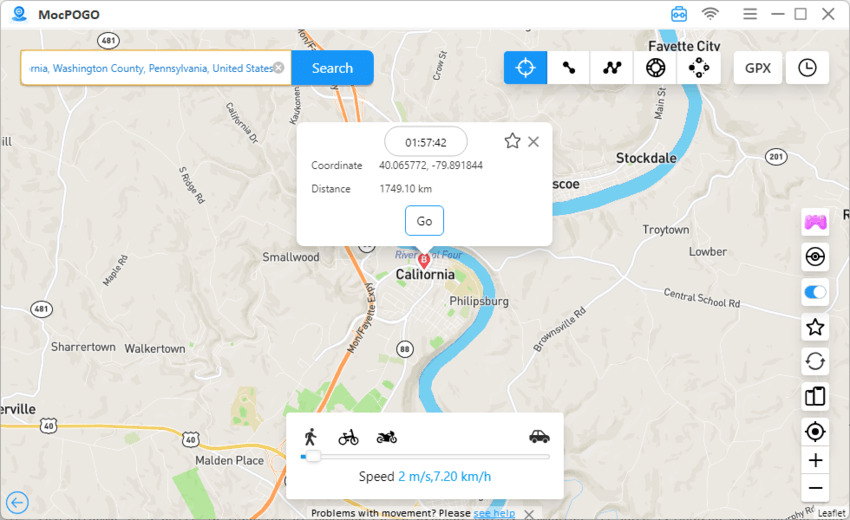
Step 2 Select a fake location. Search for any location or enter GPS coordinates. Tap the map pin for your desired spot, then select Teleport Mode.
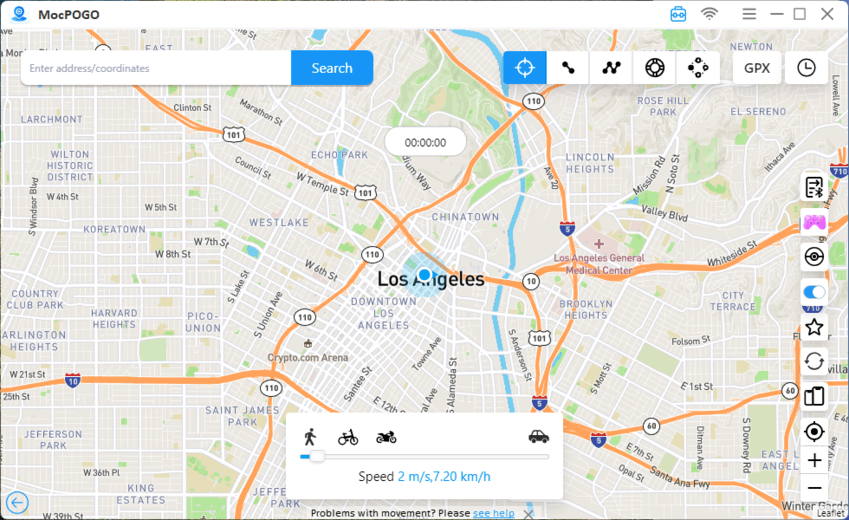
Step 3 Click the Go button. MocPOGO will automatically update your device’s location. Launch Chrome on your device – any website or web app that checks location will now see your fake coordinates. No browser settings to change.
Method 2: Fake Chrome Location with Developer Tools (DevTools)
Chrome Developer Tools has a built-in feature to override your location – no extensions needed. It’s ideal for developers testing geolocation-based websites, yet simple enough for anyone to follow.
How to do it:
- Launch Chrome and click F12 (or right-click anywhere on the page and click Inspect).
- In the DevTools panel, click on the three-dot menu (⋮) and select More tools → Sensors.
- In the Sensors tab, click Location. The dropdown will show No override by default.
- Click the drop-down menu and choose a preset city, or select Custom location and enter your desired latitude and longitude.
- Refresh the page – any website that checks your location will now see the fake coordinates.

Limitations of this method: This approach only spoofs websites’ geolocation API requests. It doesn’t interfere with your IP address, so websites that use IP and GPS can still detect your real region. It also only operates on a per-tab basis and stops working as soon as you close DevTools.
Method 3: Fake Your Location with Chrome Extensions
A more convenient way to fake your location is using Chrome extensions. These extensions intercept the browser’s Geolocation API and feed it fake coordinates instead.
Popular Chrome Extensions for Location Spoofing
- Location Guard: Adds random offsets to your real location or sets a fixed fake location.
- Manual Geolocation: Enter custom latitude and longitude coordinates.
- Change Geolocation: Pick a location directly on a map interface.
How to use a fake location Chrome extension:
- Go to the Chrome Web Store and search for “fake location” or “geolocation spoofer”.
- Click Add to Chrome for the extension you want to use, and then click Add extension.
- Click the extension icon in the Chrome toolbar and enter the location you want to spoof (by searching for a city or entering coordinates).
- Enable the spoofing, then refresh any webpage to see your fake location.

Drawbacks of Chrome Extensions: Extensions only spoof the JavaScript Geolocation API within the browser. They don’t change your IP address or GPS on the operating system level, so they won’t affect non-Chrome apps or websites that are smart enough to work out your actual IP address.
Method 4: Spoof Your Location with a VPN
A VPN (Virtual Private Network) routes your internet traffic through a remote server, masking your real IP address with the server’s IP. This is the most effective way to bypass IP-based geolocation checks.
How to use a VPN to spoof your Chrome location:
- Select a VPN (popular choices in 2026 include NordVPN, ExpressVPN, Surfshark, and ProtonVPN).
- Install the VPN software on your computer.
- Launch the app, choose a server in the city or country you want to appear in, and click Connect.
- Open Chrome – your IP address will now reflect the VPN server’s location, fooling IP-based geolocation websites.
Restrictions of VPN Spoofing: A VPN only changes your IP location. It does not spoof the Geolocation API (GPS). If a website requests GPS access, your real coordinates could still be revealed.
FAQs about Chrome Location
Here are answers to the most common questions about faking your location in Chrome, from basic limitations to advanced solutions.
Q1. Does Chrome have a default fake location?
No, Chrome offers no built-in option to set a permanent fake location. The DevTools Sensors override resets when DevTools closes, and extensions only work while they’re enabled. For a persistent, system-wide solution, you need a dedicated GPS spoofer.
Q2. Will I be banned if I spoof my location in Chrome?
It depends on the platform. Most informational sites and streaming services won’t ban you for a fake location. However, location-based games like Pokémon GO have cheat detection systems that flag anomalies in GPS readings, which can lead to bans or suspensions. Tools like MocPOGO, which simulate natural movement, are harder to detect than simple browser hacks.
Q3. Why are some sites still showing my actual location?
Because sites combine multiple signals. Spoofing only your GPS (via DevTools/extensions) leaves your IP exposed, and using only a VPN leaves your GPS exposed. To fully control what a site sees, you need to address both. That’s where dedicated GPS spoofers like MocPOGO come in – they provide a complete, all-in-one solution for Chrome and all other apps.
Conclusion
Faking your location in Chrome isn’t difficult once you choose the right method. Chrome DevTools works well for quick developer tests, browser extensions are handy for casual browsing, and VPNs help bypass IP-based restrictions.
However, for full device-level location spoofing – across Chrome and all other apps simultaneously – MocPOGO Location Changer is the clear winner. It’s the most comprehensive solution in 2026, offering one-click teleportation, realistic movement simulation, and no need for jailbreak or root. Get MocPOGO today and take full control of where you appear online.