

Pokémon GO Routes Not Working: 2026 Troubleshooting Guide

Routes were supposed to make a simple walk in Pokémon GO feel more rewarding. A path between two PokéStops brings Route spawns, gifts from Mateo, and a chance at Zygarde Cells. In practice, many Trainers start a Route, walk half of it, and then see progress freeze. Others open the Nearby tab and find nothing at all.
If you find routes in Pokémon GO not working, the cause is usually small. Weak GPS, an outdated cache, too much speed, or a Route that quietly got removed can all break tracking. Most of these problems take only a few minutes to fix, so let’s go through them one by one.

Part 1. Why Are Routes Not Working in Pokémon GO?
A Route needs your GPS, the game servers, and the map to agree. When one fails, tracking stops. Here are the usual reasons:

- GPS and location drift—Tall buildings, trees, or indoor spots can make your marker jump around. Drift too far, and the Route pauses.
- Server glitches and cache bloat—After updates, old cached files can clash with new data. Routes may then freeze, fail to load, or lose progress.
- Game restrictions and cooldowns—Moving too fast can stop distance from counting. A sudden location jump can also trigger a cooldown, and actions may fail until it ends.
- Under-review or removed Routes—Every Route starts and ends at a PokéStop or Gym. If one of those points leaves the map, the Route gets archived, and anyone following it loses progress.
Part 2. Quick Fixes for Common Pokémon GO Routes Issues
Whether it is a specific Pokémon GO route not working or the entire tab failing to load, most issues start with phone settings or stored game data. Try these fixes in order and test a Route after each one.

Toggle GPS and Enable Precise Location
Routes need exact location data. On iPhone, go to Settings > Privacy & Security > Location Services > Pokémon GO. Choose “While Using the App” and turn on Precise Location. On Android, open Settings > Location > App location permissions > Pokémon GO, then enable “Use precise location.” Then switch location off for ten seconds and back on to clear a stuck signal.
Clear Game Cache and Restart the App
On Android, go to Settings > Apps > Pokémon GO > Storage and tap Clear cache. Skip “Clear data” unless nothing else works, since it signs you out. iPhone has no cache button, so use Offload App under iPhone Storage instead. Then force close the game and reopen it.
Refresh Game Data in Settings
Pokémon GO has a built-in refresh tool. Tap the Pokémon Ball, open Settings, select Advanced Settings, and tap Refresh Game Data. The game then pulls fresh data from the server.
Check the Route Start Point and Direction
A Route won’t track until you reach its starting PokéStop or Gym, marked with a blue flag. Direction matters too, since some Routes run only one way. Start at the wrong end of a one-way Route, and nothing gets recorded.
Keep Walking Speed Under 10.5 km/h
When you move faster than a normal walking pace, distance may stop counting. Community testing points to about 10.5 km/h as the upper limit, although the game has never published an official number. Keep a steady pace and skip Routes while driving.
✅ Learn More: [Latest!] Pokémon GO Routes: The Ultimate Guide for Trainers
Part 3. No Routes Nearby? How to Find and Create Valid Routes
An empty Routes tab doesn’t leave you stuck. Look further away, or build your own Route once you qualify.
Use Campfire to Find Routes
The Nearby tab only lists Routes close to you. The Campfire app shows Routes across a wider map, which helps you plan a trip. Still, you must stand at the start point and begin the Route inside Pokémon GO.

Trainer Level Requirements for Creation
Any Trainer at Level 7 or higher can follow Routes. Creating one requires Level 30. Child accounts made through Pokémon Trainer Club or Niantic Kids can’t create Routes at all.

Step-by-Step Creation at PokéStops or Gyms
Once you qualify, the process is simple:
- Open the Nearby menu, select the Routes tab, and tap Create New Route.
- Pick a PokéStop or Gym as your start point. Choose an end point now or tap Select Later.
- Walk to the start point and tap Yes when recording begins.
- Walk the full path. Routes must be 0.5 km to 20 km long (0.5 km to 2 km is ideal for quick farming).
- Add a name, description, and tags at the end point, then submit.

Route Moderation and Approval Waiting Time
Every new Route goes through review before others can see it. There’s no fixed timeline. Some get approved within minutes, while others wait for weeks. Paths through private property or unsafe areas usually get rejected.

Part 4. How to Follow and Complete Pokémon GO Routes Without Walking
Some limits stay out of your hands even after every fix. Heavy rain, a busy schedule, or a town without approved Routes can stop progress completely. Poor GPS in a crowded city can keep pausing your walk, too.
MocPOGO, a GPS location changer for iOS and Android, offers a simple workaround when Pokémon GO routes are not working due to environment limits. It moves your phone’s location to any Route on the map, so you can follow the path at a natural pace from home. No jailbreak or root is needed, which keeps setup easy for beginners.

168,282 people have downloaded it.
- Teleport instantly to Route-rich hotspots worldwide.
- Trace Route paths via Two-Spot and Multi-Spot modes.
- Import GPX route files for ready-made movement paths.
- Track safe cooldown time with the built-in timer.
- Support Monster Hunter Now, Pikmin Bloom and other location-based apps.
- Support the latest iOS 27/Android 17.
How to Use MocPOGO to Complete Pokémon GO Routes Anywhere
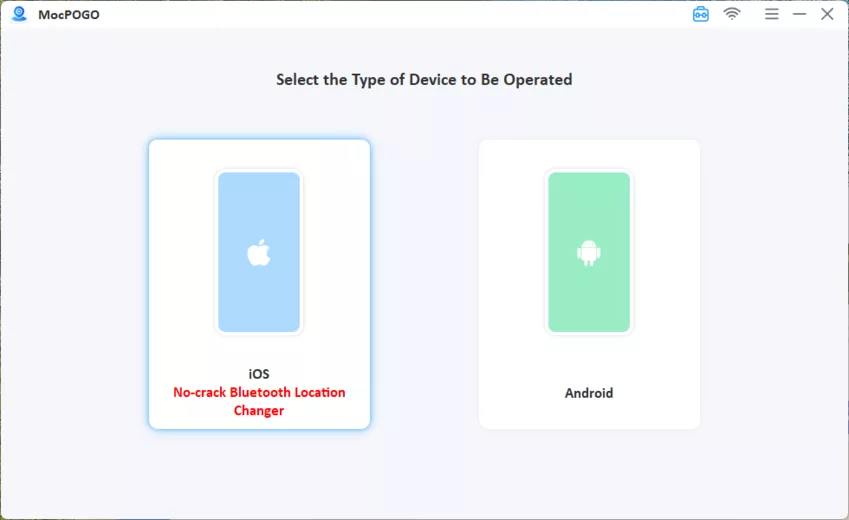
- Download and install MocPOGO on your Windows or Mac computer, then launch it.
- Connect your iPhone or Android phone with a USB cable and follow the on-screen prompts.
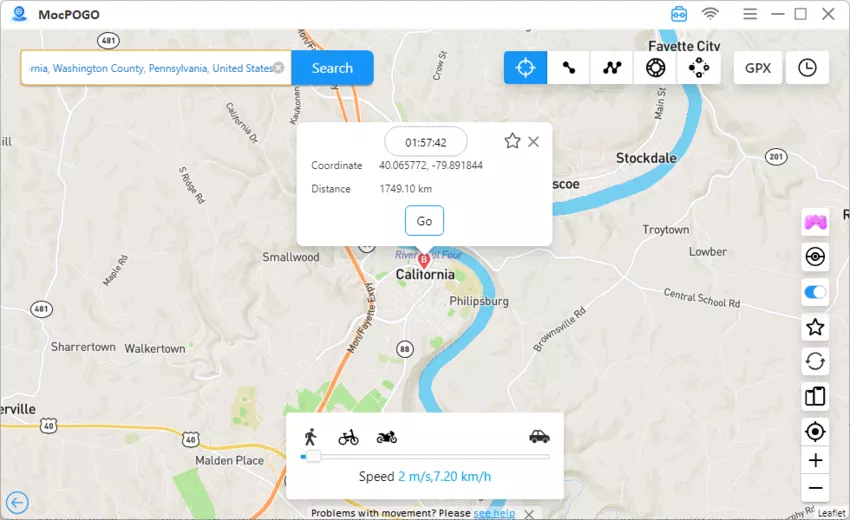
- Choose Teleport Mode, enter the Route’s start point, and click Go.
- Switch to Multi-Spot Mode and click points along the path, or import a GPX file. Set a walking speed and click Go.


Part 5. Best Tips to Get Zygarde Cells on Routes
Since the October 2026 update, Cells are added straight to your Zygarde Cube when you complete a Route; there’s no green glimmer to tap anymore. That makes efficiency, not map-spotting, the real skill.
- Respect the 3-Cell daily limit. Trainers widely report a cap of three Cells per day from Routes. Once you hit it, extra Routes add nothing until the daily reset.
- Actually complete the Route. Cells are granted on completion, so ending early or letting GPS drift pause the Route halfway can cost you the reward. Walk to the last point and confirm it registered.
- Rotate your Routes. A Route tends to pay out once per day, so running the same path five times rarely helps. Spread your attempts across different approved Routes nearby.
- Skip Mateo and check your Cube. A Gift Exchange gives items and a Postcard but does not affect Cell appearance — keep walking instead. Open the Zygarde Cube in your Item Bag to track progress: 50 Cells unlocks 50% Forme, 250 completes the Forme.
Part 6. FAQs About Pokémon GO Routes Issues
Still unsure about something? These quick answers cover the questions Trainers ask most often.
Q1: Why did my Route pause automatically?
The game pauses a Route when it thinks you’ve moved away from the path, usually because of GPS drift. Walk back toward the next Route point, and tracking should switch on again automatically.
Q2: Why didn’t I get a Zygarde Cell after finishing a Route?
Cells aren’t guaranteed on every Route. You may have already hit the three-Cell daily cap, or followed that same Route earlier today. Since the October 2026 update, Cells are awarded automatically on Route completion, so there’s nothing to tap on the map — if your Cube total didn’t move, the Route either didn’t complete or the daily limit was already used. Try a different Route after the reset.
Q3: Can I walk a Route in reverse?
Only if its creator allowed it. Check the Route preview for a Reverse Direction button under Follow. If the button isn’t there, that Route works only in its original direction from start to end.
Summary
Most cases of Pokémon GO Routes not working trace back to a few causes: weak GPS, an old cache, the wrong start point, or walking too fast. Precise location, a cleared cache, and refreshed game data fix most of them. Starting at the blue flag and keeping a steady pace helps too. For Zygarde Cells, respect the daily cap and try a new Route each time.
Weather, missing Routes, and poor signal are harder to control. That’s where MocPOGO Location Changer helps. Its teleport, multi-spot movement, and adjustable speed let you complete Routes from anywhere. Try it now and keep your progress moving.


