


Solved! How to Fix Pokémon GO Plus Bluetooth Not Working

If you’re having Bluetooth issues with your Pokémon GO Plus, you’re not alone. Many players run into the same issues: the device doesn’t show up, it won’t stay connected, or it pairs but fails to catch Pokémon.
The good news is that there’s usually a simple solution to these problems.

Part 1: 5 Warning Signs Your Pokémon GO Plus Is Not Working
Knowing what’s wrong is the first step to fixing it. Here’s a list of the top five issues that players have encountered.
1. Can’t See Device in Game’s Settings
You select Connected Devices and Services in Pokémon Go, and your Plus isn’t there in the list of Available Devices. This is annoying because it’s simply not visible to tap.
2. Pairing Works, but Device Drops Connections
It will pair, but then disconnects after a few minutes. This means you’re spending less time gaming and more time pairing. This could be due to interference or a low battery.
3. Can Connect, but Won’t Catch Pokémon
Pokémon are detected, but your Plus doesn’t catch anything. It shows up in the app, but the device is not auto-catching Pokémon. This is most likely a software issue within the game.
4. Device is Unresponsive (No Buzz, No Lights)
Clicking the button triggers nothing — no light, no vibration. If your device is completely unresponsive, the battery is likely dead (or very rarely, hardware failure).
5. Bluetooth Signal Interference
After connecting your Plus, the connection is not stable — it randomly disconnects, fails to detect Pokémon, or won’t spin PokéStops. This can happen if you’re in an area with many other Bluetooth devices nearby.
Part 2: Why Is My Pokémon GO Plus Not Pairing?
Understanding why your Pokémon GO Plus isn’t appearing in Bluetooth devices will save you time and frustration. Here are the most common reasons.
1. Low Battery
A low CR2032 battery of the Pokémon GO Plus is the most common culprit. Without enough power, the device may fail to establish or maintain a Bluetooth connection, so you might not be able to pair it at all, or it will keep disconnecting.
2. Bluetooth Off or Signal Interference
This might seem basic, but often Bluetooth is off because power saver mode disabled it, or other devices (Wi‑Fi routers, Bluetooth gadgets, microwaves) interfere with the 2.4 GHz band.
3. App Version Too Low
Using an old version of Pokémon GO may not work properly with the Plus. App updates from Niantic often address connectivity issues, and an outdated version of the app may not be compatible with the latest device firmware.
4. Device Paired with a Different Phone
The Pokémon GO Plus can only connect to one phone at a time. If you previously paired it with a different phone and didn’t unpair it, it might still be trying to reconnect to that old phone, blocking the new connection.
5. iOS & Android System Issues
If you haven’t restarted your phone in a while, background tasks can clog up the Bluetooth stack.
Part 3: 9 Ways to Fix Pokémon GO Plus Bluetooth Not Working
From “Bluetooth is disabled” errors to random disconnections during gameplay, one of these nine fixes should solve your problem. Try them in order for the quickest results.
Fix 1. Turn Bluetooth On
If your phone’s Bluetooth is turned off, the Pokémon GO Plus won’t connect. On both Android and iOS, it’s common for Bluetooth to be disabled when battery saver mode is active. Go to your phone’s settings and make sure Bluetooth is enabled.
Fix 2. Restart Your Phone
Restarting your phone clears the Bluetooth cache and closes any background processes interfering with the connection. This simple fix is often overlooked but can resolve many pairing issues.
Fix 3. Update the Pokémon GO App
An outdated Pokémon GO app can cause connectivity problems. Niantic regularly releases updates that fix Bluetooth issues, so keeping the app up to date is a simple but effective fix.
Fix 4. Replace the Battery (CR2032)
The Pokémon GO Plus runs on a replaceable CR2032 coin battery. If your device is unresponsive or disconnects shortly after pairing, a weak battery is often the culprit. Simply replace it with a new CR2032 battery — no waiting time needed. Then try pairing again.

Fix 5. Turn Off Other Bluetooth Devices
Having too many active Bluetooth devices nearby can interfere with the connection, causing your Pokémon GO Plus to fail to connect or stay connected. This is especially common in crowded public places.
Fix 6. Unpair & Re‑Pair in the Game
If your Pokémon GO Plus is connected to Bluetooth but not working, the pairing data in the game might be corrupted. Unpairing and re‑pairing may fix this issue.

Fix 7. Factory Reset the Device
If none of the above fixes work, a factory reset will clear the device’s pairing history and restore it to a fresh state. This is especially helpful if the Plus was previously paired with a different phone.
Fix 8. Examine Bluetooth Interference
Bluetooth interference is often overlooked, but it’s a common problem. Bluetooth operates on the 2.4 GHz frequency, which is also used by Wi‑Fi, baby monitors, and more.
Fix 9. Check In‑Game Settings
Sometimes the issue is simple: the game’s auto‑catch or accessory settings may have been turned off, especially after a game update that resets preferences.

Part 4: The Most Effective Alternative to Pokémon GO Plus – MocPOGO Go Catcher
If your Pokémon GO Plus device is dead, lost, or you simply can’t bear the instability of Bluetooth connection, MocPOGO provides a more reliable and much more feature‑rich alternative.
MocPOGO is a professional location changer that has abundant powerful features. It has newly upgraded its exclusive POGO Assistant for iOS. Besides this practical assistant tool, it also integrates a handy Go Catcher function. Acting as a virtual Pokémon GO Plus, this tool enables you to catch Pokémon and spin PokéStops automatically without the repeated hassle of Bluetooth pairing. As a fully digital alternative to physical Pokémon GO accessories, it requires no external hardware to carry: no dead battery troubles, no constant Bluetooth reconnection, and no signal interference.
It also delivers tailored location spoofing tools for Pokémon GO, including one‑click teleportation to anywhere in the world, a joystick for realistic movement simulation, multi‑spot auto‑walk routes, and the ability to set your iPhone GPS location from an Android phone via Bluetooth.

168,282 people have downloaded it.
- Change GPS location on iOS device without jailbreak.
- Simulate GPS movement with custom speeds.
- Change the location of all location-based games/apps.
- Support GPS joystick to play AR game on PC.
- Scan and search nearby Pokemon and raid battle.
- Multi-Device control up to 15 devices.
- Support the latest iOS 26/Android 16.
How to Auto‑Catch Pokémon without Pokémon GO Plus?
Step 1 Tap Go Catcher Icon on the MocPOGO iOS App
Download and start the MocPOGO iOS app. Find the Auto button on the main screen and click on it. A quick tutorial will pop up to guide you through the basics, giving you a clear overview of how Go Catcher works.
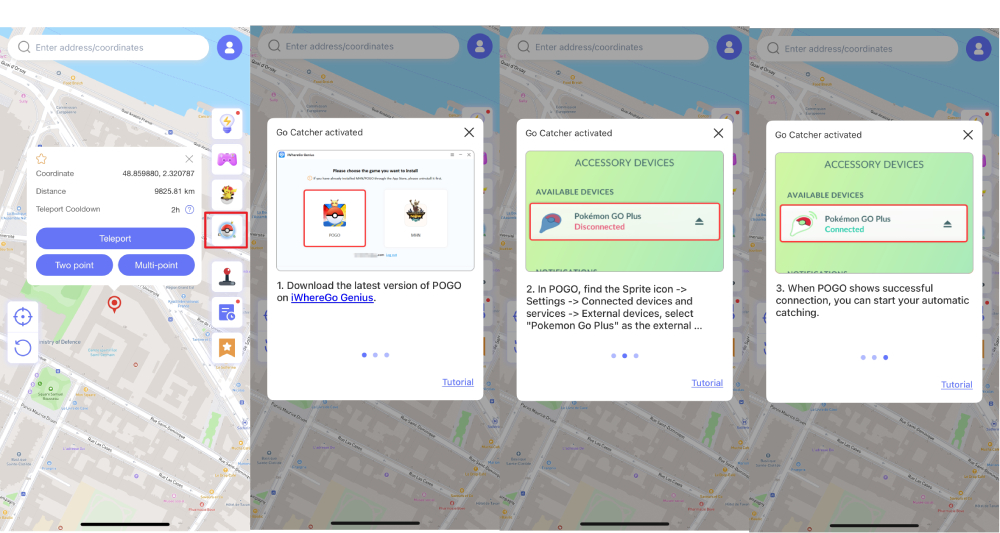
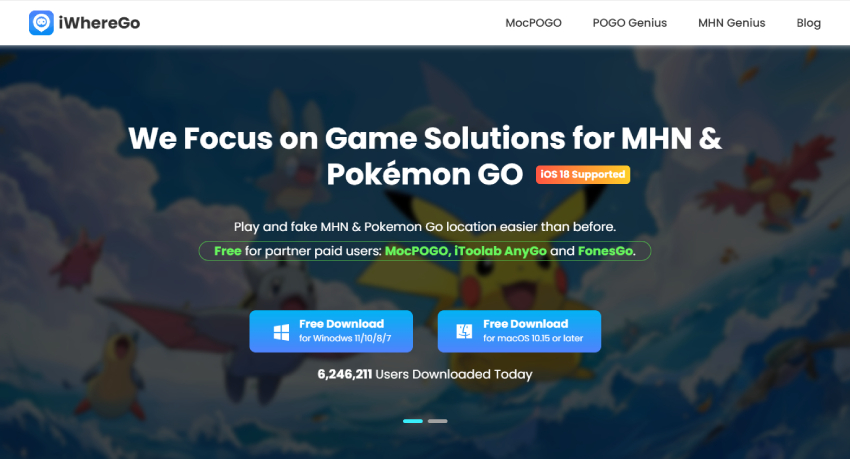
Step 2 Download the Modified Pokémon GO
To do this, visit the iWhereGo website and download the iWhereGo software, which you’ll need to install a modified version of Pokémon GO.
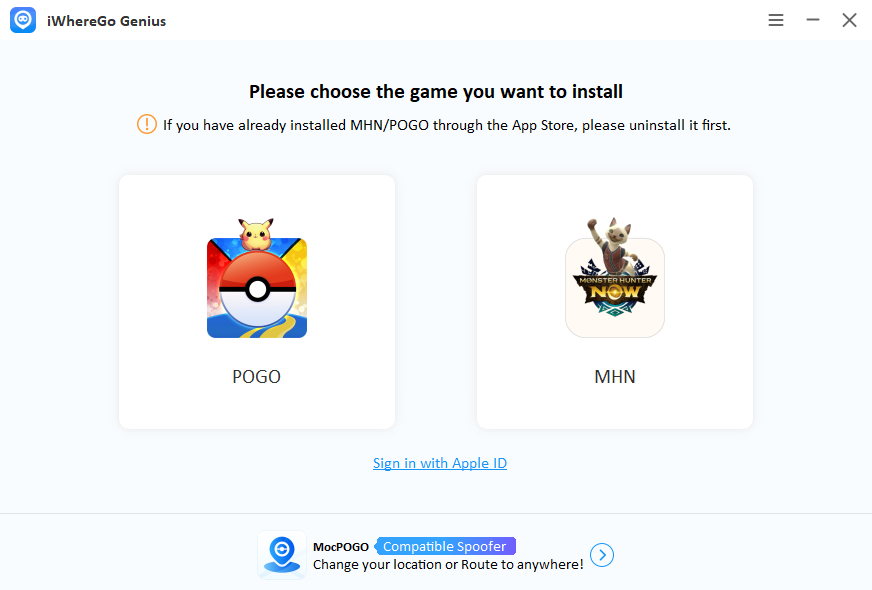
Launch iWhereGo Genius on your computer and select the Pokémon GO (POGO) option.
Step 3 Pair Go Catcher as a Virtual Pokémon GO Plus
Launch the modified POGO app on your iOS device. Tap Settings → Connected Devices and Services and select the virtual Pokémon GO Plus under Available Devices. The Go Catcher button (a Poké Ball icon) will now show in the top‑right of the screen.
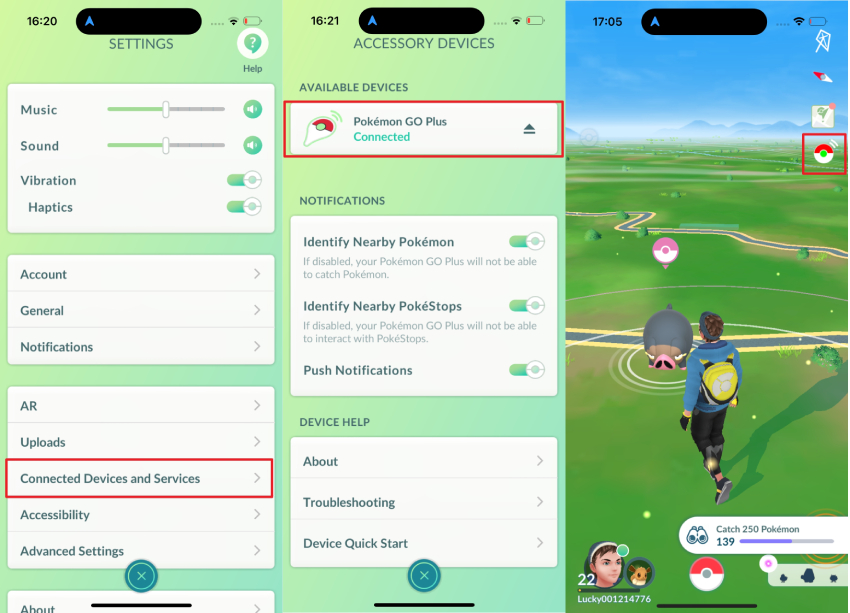
Step 4 Auto‑Catch Pokémon
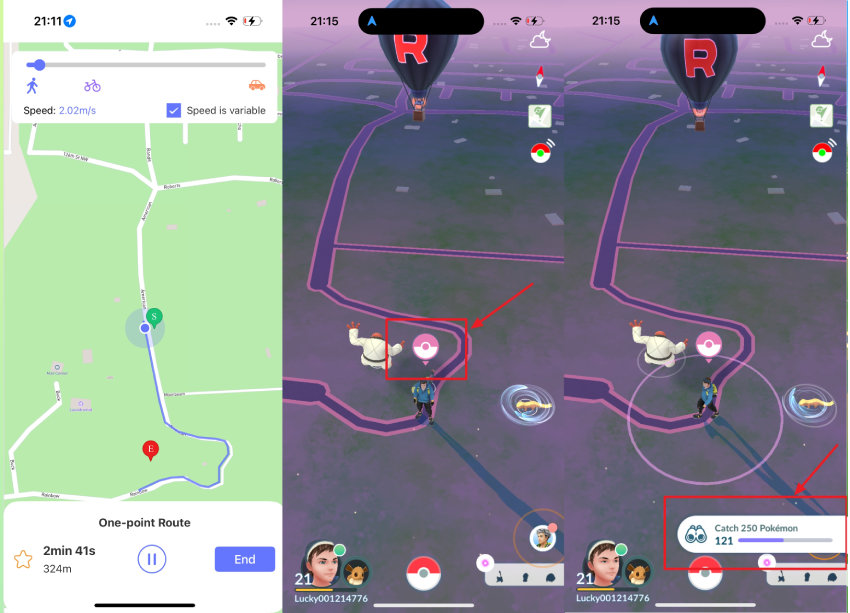
Click the Poké Ball icon in the top right to turn auto‑catch on. To make this experience even better, turn on an auto‑walking feature in MocPOGO — select Two‑spot, Multi‑spot, or Sport (joystick) mode. You will know your Go Catcher has caught its target (or gathered items from a stop) when the pink Poké Ball flashes.
Conclusion
Pokémon GO Plus Bluetooth connection problems are common, but they are almost always fixable. First, swap out the battery and check your device’s Bluetooth settings, then try the 9 fixes in sequence. For most, the problem will be fixed in the first three or four steps.
If you’re looking for a more reliable alternative to a physical device, look no further than MocPOGO Go Catcher. It’s hardware‑free and provides you with a robust virtual Pokémon GO Plus that combines auto‑catch tools, location spoofing, joystick movement, and one‑click teleportation all in one place. Whether you’re repairing your Plus or seeking the most stable solution, MocPOGO is here to help.