


MuMu Player Pokémon GO Not Working? 4 Fixes & Safer Alternative

You open MuMu Player, tap Pokémon GO, and get a black screen, a login loop, or Error 12. You are not alone. In most cases, MuMu Player Pokémon GO not working is not a PC problem. It is a clash between an emulator and a game built for real phones. This guide explains why it happens, gives four quick fixes, and shows a safer way to control your location from a computer.
Part 1. Why Is Pokémon GO Not Working on MuMu Player?
A fresh MuMu install does not guarantee the game will run. MuMu’s own PGSharp help page states that no version of MuMu Player supports the Google Play version of Pokémon GO. Here are the four reasons things usually break.
Niantic’s Anti-Cheat Updates (Play Integrity)
Pokémon GO is now run by Scopely, which completed its purchase of Niantic’s game business on May 29, 2025. The game’s rules still list emulators and modified software as violations.
Part of the defense is Google’s Play Integrity API. It lets an app ask whether it is running on a genuine, certified Android device. Since May 2025, Google has made hardware-backed checks the default for these verdicts. An emulator is software pretending to be a phone. It has no real security chip to vouch for it. Scopely does not publish which checks Pokémon GO uses, but the direction is clear: each year, fake devices get harder to hide.
Emulator Version Mismatch
Not every MuMu release behaves the same. MuMu Player 12 does not support PGSharp and points users to MuMu 6 instead. MuMu’s PGSharp guide asks for the 64-bit MuMu 6 build (V2.7.23.0). Modern Android games target 64-bit systems, so a mismatched build can crash on launch or freeze on the loading screen.
Graphics & Hardware Conflicts
Pokémon GO leans hard on your graphics card. A rendering mode that does not suit your GPU causes black screens, flickering, and sudden closes. Virtualization Technology (VT) is another trap. It is a CPU feature that lets emulators run fast, and many PCs ship with it turned off.
Outdated Google Play Services / WebView
Logging in relies on Google sign-in and web pages inside the app. If Google Play Services or Android System WebView is old on the emulator, you may see “Unable to authenticate” or a login screen that never loads.
Part 2. Quick Fixes When MuMu Player Pokémon GO Is Not Working
Try these in order. Each takes about five minutes. They can solve crashes and login trouble, but they cannot make an emulator pass the game’s device checks.
Fix 1: Switch to the 64-bit Version of MuMu Player
(Note: Only relevant if you are on MuMu 6 with PGSharp — the 64-bit build (V2.7.23.0) is what MuMu requires for that route. MuMu 12 users cannot get the Play Store version running this way.)
- Open MuMu Player and go to Menu, then About Us.
- Check the version number and whether it is the 64-bit build.
- If not, uninstall it and install the 64-bit version from MuMu’s website.
- Restart your PC before launching the game again.

Fix 2: Change Graphics Rendering Mode
- Open the emulator’s settings and find the graphics or renderer option.
- Switch to a different mode, such as Speed+ (DirectX), Compatible+ (OpenGL), or Vulkan. Names vary by version.
- Restart the emulator.
- Update your GPU driver from the NVIDIA, AMD, or Intel website if the black screen stays.

Fix 3: Fix “Unable to Authenticate” via Browser
For the “Access blocked: authorisation error” message, MuMu suggests this route:
- Install Google Chrome from the emulator’s App Center.
- Set Chrome as the default browser in the emulator’s Android Settings (Apps > Default apps > Browser app).
- Restart the game and try logging in again. Several attempts sometimes work.
- Update Google Play Services and Android System WebView in the Play Store.
Fix 4: Clear App Cache & Enable VT
1. In the emulator’s Android settings, open Apps, then Pokémon GO, then Storage, and tap Clear cache. Skip “Clear data” unless you can log in again.
2. Restart your PC and open the BIOS (usually by pressing F2, F10, or Delete at startup).
3. Turn on Intel VT-x or AMD SVM, then save and exit. MuMu also has a “How to enable VT” guide in its Windows help section.
If you have done all four and the game still fails, the problem is likely the emulator itself. That brings us to the bigger issue.
Part 3. MuMu Player + PGSharp vs. Official App: Why Emulators Trigger Account Bans
The reality check: Even if you get MuMu Player working with a modified APK like PGSharp, it is strictly temporary and unstable after every game update. The modified file must be rebuilt each time the game changes. Until it is, you get crashes, login errors, or a game that will not open at all.
High ban risk: Stability is the smaller worry. Pokémon GO’s gameplay fairness policy uses a three-strike system:
- Strike 1: A warning, plus about seven days of limits. Rare wild Pokémon, trading, gifts, and special event spawns can be blocked.
- Strike 2: About 30 days of suspension. You cannot log in.
- Strike 3: A permanent ban. Only permanent bans can be appealed, and very few are overturned.
Some violations can lead to immediate termination with no warning.
A modified APK on an emulator stacks two problems – an unofficial game client and, usually, a fake location. Your account, with all its years of Pokémon and progress, is what you are putting on the line.
Part 4. Best Safe Alternative: Control Pokémon GO Location on PC Safely with MocPOGO
You don’t have to give up the comfort of playing from your desk just to keep your account safe. Instead of running a risky, laggy Android emulator, the smartest setup in 2026 is simple: run the official Pokémon GO app on your iPhone or Android phone, and control your GPS movement directly from your PC using MocPOGO. You still get smooth keyboard joystick controls, and if you want a bigger screen, you can easily pair it with built-in tools like Windows Phone Link or macOS iPhone Mirroring without triggering emulator bans.

168,282 people have downloaded it.
- Change GPS location on iOS device without jailbreak.
- Teleport instantly to any place with one click.
- Simulate GPS movement with custom speeds.
- Change the location of all location-based games/apps.
- Multi-device control for up to 15 devices.
- Support the latest iOS 27/Android 17.
Key Features of MocPOGO
- ✓360° GPS Joystick & PC Keyboard Control: Move smoothly in any direction using your WASD or arrow keys—getting the desktop control you wanted from MuMu Player without crashes.
- ✓Zero Error 12 & Official App Compatibility: Works directly with the official Pokémon GO app (with Bluetooth mode for iOS) to prevent “Failed to detect location (12)” errors.
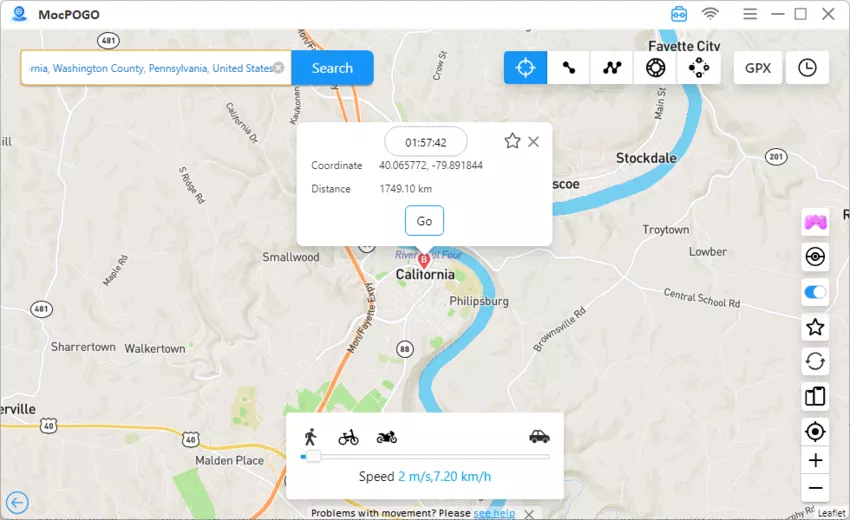
- ✓1-Click Global Teleport: Enter any city name or coordinates to jump instantly to worldwide raids and regional spawns right from your desk.
- ✓Custom Routes & Natural Speed Simulation: Plan multi-stop routes and adjust speeds from 3.6 to 100 km/h to mimic natural walking or cycling for safe egg hatching.
- ✓Built-in Cooldown Timer: Automatically tracks your wait time after long-distance jumps before catching or spinning, helping prevent soft bans.
- ✓Virtual GO Plus (Auto-Catch & Spin): Effortlessly catches nearby Pokémon and spins PokéStops hands-free without needing extra physical hardware.
- ✓No Jailbreak or Root Required: Keeps your device security intact while running smoothly on Windows and Mac across the latest iOS and Android versions.
How to Spoof Pokémon GO from PC Without MuMu Player
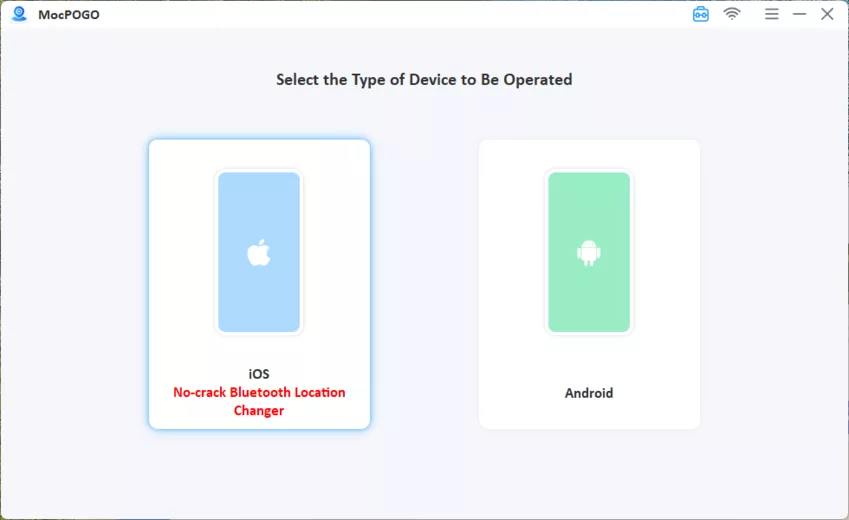
- Download it from the official website and install it on your Windows PC or Mac.
- Connect your iPhone or Android to the computer via USB cable, Wi-Fi, or Bluetooth.
- Pick Teleport, Joystick, or Route, depending on how you want to move. Enter the location, confirm it, and open the official Pokémon GO app. Check the cooldown timer before you catch or spin anything.

Part 5. FAQs About Playing Pokémon GO on MuMu Player & PC
Still have questions about running Pokémon GO on an emulator or controlling your location from a computer? Here are quick answers to the most common issues players run into.
Q1. Can I play Pokémon GO on MuMu Player 12 in 2026?
Not reliably. MuMu states that none of its versions support the Google Play version of Pokémon GO, and that MuMu Player 12 does not support PGSharp. Even if the game opens, emulator use is against the game’s rules and can lead to strikes.
Q2. How do I fix “Failed to detect location (12)” when spoofing Pokémon GO?
Error 12 means the game cannot get a valid GPS reading from your device. Try these:
- Set your phone’s location mode to high accuracy.
- Restart your phone and the spoofing tool.
- Reconnect the phone to your PC, then reopen Pokémon GO.
- Update both the game and your location tool.
A tool built for the official app, like MocPOGO, also spares you the extra problems that come with emulators and modified APKs.
Q3. Can MocPOGO run Pokémon GO directly on my computer screen?
MocPOGO is a GPS location changer that changes your phone’s GPS from your PC. You still play on the official mobile app, or you can mirror your phone screen to your PC.
Final Thoughts: Skip the MuMu Player Hassle with MocPOGO
MuMu Player can be tuned, but it cannot change the real issue. Emulators fail Pokémon GO’s device checks and put your account at risk. MocPOGO Location Changer keeps the official app on your phone and gives you teleport, routes, a joystick, a cooldown timer, and auto-catch from your PC. Try the free download and see the difference before you risk another account on an emulator.


