
4 Tested Ways to Hide Your Location on Twitter: Stop Tracking Now (2026)

Twitter tracks far more than your tweets. Every time you open the app, the platform can pinpoint where you are. In January 2026, X updated its privacy policy, making location data more transparent to users. Whether you’re job hunting, traveling, or just care about your privacy, hiding your location on Twitter matters now more than ever.

Part 1. Can People See Your Location on Twitter?
Yes, but it depends on your settings. Twitter handles location data in two main ways: it collects your location from your device and network, and it displays certain location info to others.
What others can see:
Country / region labels: In the “About This Account” section, anyone can tap your profile to see a country or region tag. This feature (rolled out in November 2025) was designed to combat bots, but it caught many users off guard.
Most users don’t realize that even with location services disabled, Twitter can still infer where you are. Your IP address gives away your city. Your followers, interactions, time zone, and language preferences also create telltale patterns.
The “About This Account” country label has raised privacy concerns for millions who never consented to displaying their location so prominently.
Fortunately, you don’t have to accept this privacy risk. With the right settings and reliable tools, you can easily stop Twitter from exposing your location.
Part 2. 4 Practical Ways to Hide Your Location on Twitter
To help you stay private, we’ve rounded up four practical methods to block Twitter from tracking and revealing your whereabouts. Each method works on a different layer of location tracking, so you can pick the one that fits your needs. Start with Method 1 if you want quick results. Jump straight to Method 4 if you need complete control.
Method 1: Disable Precise Location on Your Mobile Device
This method blocks Twitter from accessing your GPS coordinates directly. It stops the app from knowing your exact location or tracking your movements throughout the day.
For iPhone users:
Open Settings → Privacy & Security → Location Services, find Twitter (or X), and select Never.
If you occasionally want to tag locations manually, choose While Using the App and toggle off Precise Location. This gives Twitter only a rough area instead of pinpoint accuracy.

For Android users:
Go to Settings → Apps → Twitter or X → Permissions → Location, then choose Don’t Allow. You can also switch from Precise to Approximate for middle-ground protection.

This method works instantly. Future tweets won’t carry GPS metadata. However, Twitter can still estimate your location from your IP address and network signals. It’s a solid first step for basic privacy, but not a complete solution.
Method 2: Turn Off Tweet Location & Delete Old Data
You may have accidentally enabled location tagging years ago and forgotten to turn it off. From that point on, every tweet broadcast your location publicly.
Open Twitter, tap your profile icon, go to Settings and Privacy → select Privacy and Safety → scroll to Location Information → toggle off both Personalize based on places you’ve been and Add location information to your Tweets.
These settings prevent future location tagging.

But what about your old tweets? Twitter keeps storing location records for every post you made while location tagging was enabled. To clear this history, stay on the Location Information page, and tap Remove all location information attached to your Tweets, then confirm the deletion.

This process may take several hours to complete, and Twitter warns that third-party apps or search engines may still have cached copies of your location data.
Note: This cleanup only removes attached GPS location tags. It will not erase location details you typed directly in your tweet captions or private DMs. If you wrote “just landed in Tokyo” in your post, that text stays visible unless you manually delete the tweet.
Method 3: Switch Profile Country to a Broader Region or Continent
Your Twitter profile shows your country by default in the “About This Account” section. You can obscure this detail by displaying a wider region instead of your exact nation.
Navigate to Settings and Privacy, tap Your Account, select Account Information. Enter your password, tap Country, and scroll past individual country options to choose Region or Continent. Instead of showing a specific country like Nigeria or United States, your profile now displays Africa or North America.
This update happens instantly and changes what others see when they view your profile. It’s a surface-level privacy change. Twitter still knows your actual country through your IP address, payment information, and SIM card region.
There is a minor downside: local trends and recommendations become less localized. You’ll see content tailored to an entire continent rather than your specific country. For some users, it’s a nice privacy benefit, while others may find it weakens their personalized browsing experience.

Method 4: Hide Your Real Location with 3 Simple Taps
For complete and permanent privacy control on Twitter, a professional GPS spoofing tool like MocPOGO lets you manually set any location to hide your real whereabouts. MocPOGO replaces your real GPS coordinates with a fake location. It works seamlessly across iOS, Android, Mac, and Windows, without jailbreak or root required, so your device stays secure, and your warranty remains intact.
Beyond Twitter, MocPOGO supports almost all location-based apps, including WhatsApp, Tinder, and Life360. Its standout features include:
- Instant Teleportation: Jump to any spot worldwide with one click. Your target location on Twitter updates instantly.
- Route Simulation: Walk naturally at adjustable speeds, making your location changes look authentic to avoid Twitter’s detection.
- Cooldown Timer: Avoid frequent location jumps that could trigger platform flags.
- GPX Route Import: Import custom GPX files to simulate natural walking paths and create more believable location histories.
- Save Multiple Locations: Bookmark your favorite spots and switch instantly, perfect for creating location‑specific content.

168,282 people have downloaded it.
- Support Pokémon GO, Monster Hunter Now, etc.
- Simulate GPS movement with custom speeds.
- Change the location of all location-based games/apps.
- Support GPS joystick to play AR game on PC.
- Multi-Device control up to 15 devices.
- Support the latest iOS 26/Android 16.
How to fake location on Twitter with MocPOGO
Follow the simple steps below to hide your Twitter location using MocPOGO:
Step 1 Download MocPOGO on your iPhone or Android.
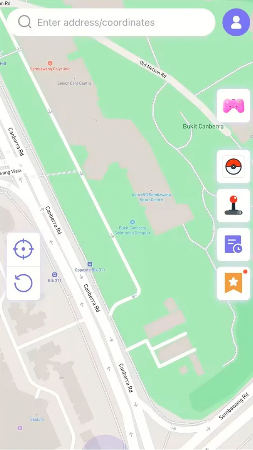
Step 2 Enter the target address or coordinates in the search box.
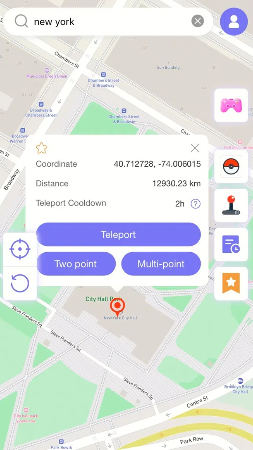
Step 3 Now, select the location and hit “Teleport” on and map.
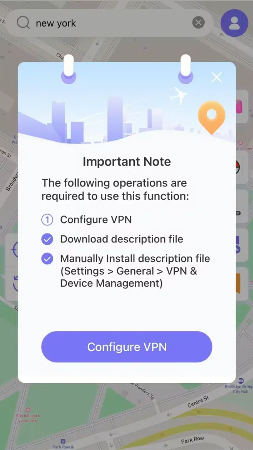
Step 4 MocPOGO for iOS will ask you to configure VPN, click on “Configure VPN” to go on.
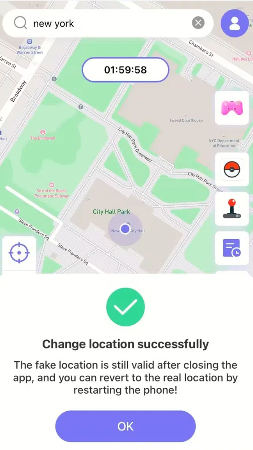
Step 5 Your device GPS will now switch to the new location instantly. When you open Twitter, the app will read your spoofed GPS data instead of your real location. You’ll instantly see local trends and targeted ads matching your fake region.
Part 3. FAQs About Twitter Location
If you are confused about how Twitter handles your location data, here’s what you need to know.
Q1. Can Twitter still track my location if I turn off location services?
Yes, it still can. Disabling GPS stops precise tracking, but Twitter can still infer your approximate location from IP address, Wi-Fi network names, and cell tower data.
Using a VPN masks your IP address and adds another layer of protection, though Twitter may still estimate your region from your language settings and time zone.
Q2. Does Twitter show your exact location by default?
No. Location sharing is disabled by default for new accounts. Once you manually add a location tag to a tweet, future posts will automatically include location data until you turn the setting off again. Many users activate this feature without realizing it.
Q3. Can people find my real location from my Twitter profile?
It depends. If you tagged locations in old tweets, Twitter still keeps that data in its backend, even if it no longer shows in your posts. Your About This Account section displays your country or region. Meanwhile, your profile city, visible landmarks in photos, and tweet timestamps can sometimes leave clues that reveal your real whereabouts.
Q4. Is it safe to hide my location on Twitter?
Yes. Hiding your location improves privacy and reduces risks like stalking, doxxing, and targeted harassment. Security experts generally recommend disabling location services on social media, especially for users in conflict zones or high-risk areas. The only trade-off is less personalized content recommendations, which most people consider a minor inconvenience.
Conclusion: Take Control of Your Twitter Privacy
Twitter tracks more than just your GPS. It collects network signals, IP addresses, and behavioral patterns to build a detailed map of your movement. The four methods in this guide give you different levels of control, from basic privacy tweaks to full location masking.
For ultimate location privacy, MocPOGO Location Spoofer is the most reliable choice. With just a few clicks, you can set any location worldwide. Whether you’re protecting your privacy or accessing region-locked content, MocPOGO gives you full control over what Twitter sees.