
8 Useful Fixes for Life360 Notifications Not Working on iPhone (2026)

Your phone stays silent when your child gets home. Your partner’s arrival at work goes unnoticed. Life360 notifications on your iPhone have mysteriously stopped working, leaving you guessing what’s wrong. Don’t worry. In this guide, you’ll learn the most common causes and 8 simple step-by-step solutions to fix your Life360 notifications not working problem.

Part 1: Why Are My Life360 Notifications Not Working on iPhone?
Before you start fixing, it helps to understand why Life360 notifications stop working. One of these reasons is likely to blame:
1. Notification permissions reset after iOS updates
After a major iOS update, app-level notification settings can be switched off without warning. Life360 is particularly susceptible to this.
2. Background App Refresh is turned off
To track location changes and send timely alerts, Life360 must run in the background. With Background App Refresh disabled, the app can’t track location when it’s not open.
3. Smart Notifications are not set up correctly
Life360’s Smart Notifications feature lets you set alerts for specific places. If no places are added, you won’t receive any notifications — even if the feature appears turned on.
4. Free plan limits (only 2 places)
Free users can only save 2 places. If you’ve reached that limit or haven’t set any places, notifications won’t work.
5. Unstable network connection
Life360 needs a continuous data connection to share locations. A weak Wi-Fi or cellular signal may cause delays or no notifications.
6. Focus Mode or Do Not Disturb is on
Even with everything else set correctly, these iOS features can block Life360 notifications.
7. Outdated app or iOS version
Older versions may have bugs that block notifications. These issues are fixed in newer releases.
Part 2: How Do I Fix the Notification Glitch on My iPhone?
With the likely causes identified, here are 8 proven solutions to fix Life360 notification issues on iPhone. Try them in order for the best results.
Fix 1: Check Basic Notification Permissions
Open Settings > Notifications > Life360 and make sure Allow Notifications is turned on, including alerts, sounds, and lock screen display. iOS updates can sometimes reset these settings.

Fix 2: Enable Background App Refresh
Go to Settings > General > Background App Refresh and turn it on for Life360. Otherwise, the app won’t be able to detect location changes when your iPhone is not actively in use or the screen is off.

Fix 3: Set Location Access to “Always”
Head to Settings > Privacy & Security > Location Services > Life360 and select Always. If set to “While Using” or “Never”, Life360 can’t monitor background location changes, which directly affects arrival and departure notifications.

Fix 4: Review Life360’s In-App Smart Notifications
Inside the Life360 app, then tap Settings > Notifications > Smart Notifications. Make sure your saved places (Home, Work, etc.) are set to notify you when you arrive and leave. This is an in-app setting, separate from iOS permissions. Both settings must be configured correctly for notifications to work.

Fix 5: Disable Focus Modes / Do Not Disturb
Check Settings > Focus and check if Do Not Disturb or any custom Focus mode is active or scheduled. These modes block Life360 alerts. Either turn off Focus entirely, or add Life360 as an allowed app so notifications can come through even when Focus is on.

Fix 6: Update Life360 and iOS
Launch the App Store and update Life360 if a newer version is available. Then go to Settings > General > Software Update to check for iOS updates. Running outdated software is a common (and often overlooked) reason why notifications stop working.
Fix 7: Reinstall Life360
If the previous fixes didn’t help, uninstall and reinstall Life360 from the App Store. This clears any corrupted data or broken settings that might be silently blocking notifications. After reinstalling, sign back in and reconfigure your notification settings from scratch.
Fix 8: Turn Off Low Power Mode
Disable Low Power Mode under Settings > Battery. This mode limits background processes, GPS, and push notifications to save battery — all of which directly affect Life360’s ability to send timely alerts.

Part 3: How to Turn Your Location Off Without Notifying the Other Person in Life360?
Sometimes, the real issue isn’t about fixing notification glitches; it’s about discreetly managing what others in your circle see of your real-time location. If you want to control your whereabouts without appearing offline or triggering alerts within the Life360 app, simply toggling off settings isn’t the answer.
This is where a reliable GPS location changer like MocPOGO comes in. Instead of disabling Life360’s location function (which would be immediately noticeable), MocPOGO allows you to replace your actual GPS coordinates with a virtual location of your choice.
168,282 people have downloaded it.
- Spoof iPhone GPS to send location updates to Life360.
- One-tap GPS freeze to stop sharing your whereabouts.
- Fix Life360 notifications issues while staying undetected.
- Keep Life360 active without revealing your real location.
- Save your favorite fake spots to instantly switch position.
- Support the latest iOS and Android versions.
What MocPOGO Can Do for You
- Fake Your Location without Alerting Life360: You are not disabling GPS or shutting down the app. Life360 continues to receive a steady stream of location data, so it never shows errors like “Location Sharing Paused” or “No Network.” Your circle simply sees what you want them to see.
- Teleport to Any GPS Coordinate Instantly: You can jump to any location in the world instantly, or simply set a static pin to freeze your Life360 location.
- Realistic Movement Simulation: Life360 continuously monitors member movement patterns. MocPOGO features built-in speed adjustment (3.6-108 km/h), allowing you to simulate walking or cycling movements while keeping location updates active — making your position changes look natural.
- Broad App Compatibility: Works with all location-based apps — not just Life360. Spoof your location on Twitter, Grindr, Snapchat, Pokémon GO, and more.
- No Jailbreak or Root Required: Runs on iOS and Android devices with zero system modifications.
- Safe and Private: You don’t need to share personal account information. MocPOGO focuses solely on giving you control over your device’s GPS data.
Will Life360 Notify My Circle If I Use MocPOGO to Change My Location?
No, it won’t trigger a “Location Sharing Paused” alert. MocPOGO works by replacing your device’s real GPS data with the coordinates you choose. Life360 simply reads what your device provides, so it continues to believe your location is normal and updates the map accordingly.
How to Stop Sharing Your Real Location on Life360 Using MocPOGO
Step 1 Download and install MocPOGO iOS app on your iPhone.
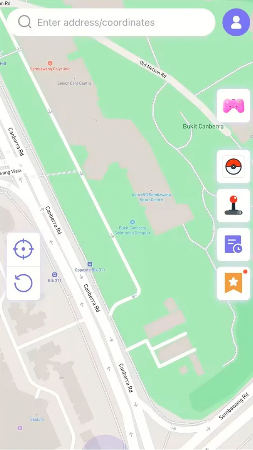
Step 2 Search for or drop a pin on your desired fake location on the map.
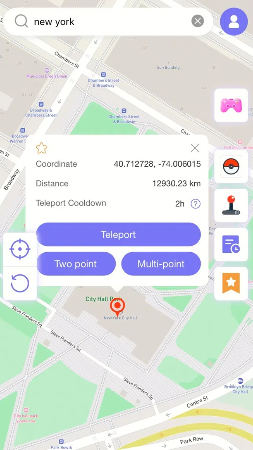
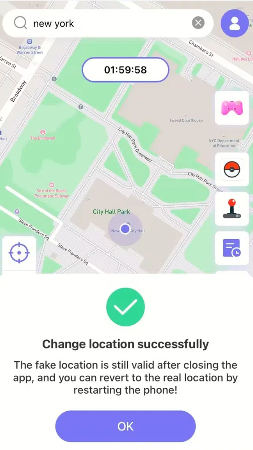
Step 3 Click “Teleport” to instantly change your GPS location.
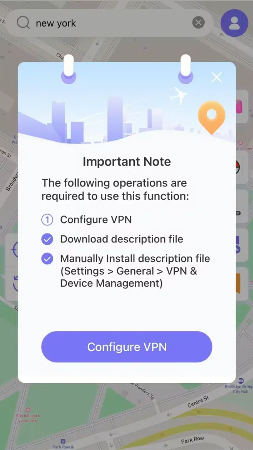
Step 4 MocPOGO for iOS will ask you to configure VPN, click on “Configure VPN” to go on.
Step 5 Your location will be changed to there. Open Life360 on your iPhone — it will now display the spoofed location to your circle.
Part 4: FAQs about Life360 Location
After walking through all the fixes above, you might still have a few lingering questions. Here are answers to the most common ones.
Q1: Why is my Life360 location not updating even after trying all fixes?
If you’ve gone through all the fixes above and your location still doesn’t update, try logging out of Life360 and logging back in. Also, check that your iPhone’s date and time are set to automatic in Settings > General > Date & Time, as an incorrect system time can interfere with location sync.
Q2: How to disable notifications when someone leaves Life360?
Open Life360, go to your circle’s settings, then tap Smart Notifications. From there, you can enable or disable departure alerts for specific locations or individual members without turning off all alerts.
Q3: How can I tell if someone has paused their location on Life360?
If a member stops sharing their location, their profile on the map will show a “Location Paused” or “Location Sharing Disabled” message instead of a real-time location. You won’t receive an automatic notification, but the status change will appear the next time you check their location card in the app.
Q4: Does clearing the cache help with Life360 notifications?
On Android, yes — you can clear the app cache from Settings > Apps > Life360 > Storage. iPhone does not have a built-in way to clear cache, but reinstalling the app (Fix 7) refreshes the cache and fixes broken configurations.
Conclusion
The 8 fixes above address the most common causes of Life360 location not working issue. Follow them step by step, and your notifications will be back soon.
If privacy is a concern and you don’t want to share every move you make on Life360, MocPOGO offers a reliable, jailbreak-free alternative. Now you can decide when — and where — your circle sees you.