


How to Delete Life360 Location History The Right Way

Family tracking has become a go-to choice for countless households, but a casual coffee run or private detour after work shouldn’t lead to awkward family questioning. Life360 runs constantly in the background, tracking your every move.
This raises serious concerns: Can you actually wipe your tracking data clean without triggering circle alerts? Most importantly, how to delete Life360 location history when the app offers no obvious “clear history” button at all? Keep reading to get the full truth and a reliable privacy solution.

Part 1. Can I See My Location History on Life360?
The short answer is yes, and the level of detail often surprises new users. Life360 doesn’t just track your current spot — it logs everywhere you go.
Paid members in your Circle can see your full trip routes, arrival times, travel duration, and even driving behavior (phone use, top speed, hard braking).
How long your history stays depends on your plan. Free accounts store 2 days of location data. Premium plans keep up to 30 days. That’s an entire month of your movements open for review — which explains why so many people want to delete their Life360 location history permanently.
Part 2. Is There a Way to Delete Life360 Location History?
Unfortunately, the reality is much stricter. There is no built-in feature to selectively delete Life360 location history, and the platform has never added a one-click “Clear History” button. This is an intentional design to keep family safety data tamper-proof.
All location data is controlled entirely by Life360’s servers. No matter which subscription you use, you cannot manually delete recorded history on your own. Your only official option is to wait for the automatic data retention period to expire. Since native deletion is impossible, you have to turn to practical workarounds to reclaim your personal privacy.
Part 3. 3 Temporary Methods to Delete Life360 Location History
Since Life360 gives no official way to clear location history, you might still try extreme fixes to cover your tracks. Below are three popular attempts, along with exactly why none of them help you delete Life360 location history discreetly.
1. Delete Your Entire Life360 Account
How to do it:
Open the Life360 app, go to the main Settings menu (gear icon), scroll down to Account, and select Delete Account. The system will ask for confirmation before starting the permanent deletion process.

The limitation:
This irreversible action removes you completely from the shared map and disrupts your Circle routine. It immediately draws unwanted attention from family members. Worse still, it cannot erase history others have already viewed or saved with screenshots.
2. Disable Location Permissions in Your Phone Settings
How to do it:
On iPhone: Navigate to Settings > Privacy & Security > Location Services > Life360, then change access from “Always” to “Never“.

On Android: Go to Settings > Apps > Life360 > Permissions > Location, then select “Deny“.

The downside:
Disabling permissions only blocks future tracking — it does nothing to wipe your past Life360 location history. On top of that, it automatically triggers a “Location Sharing Paused” label on your profile. This is a clear red flag for your family and makes privacy protection obvious instead of subtle.
3. Leave the Circle
How to do it:
Tap the Circle Switcher at the top center of the screen, select the group you want to leave, tap the gear icon for Settings, choose Circle Management, then tap Leave Circle.

The hidden cost:
Leaving the Circle stops real-time location sharing, but all your previous location history remains fully visible to Circle administrator. An unexplained exit will instantly lead to calls and unnecessary questions, defeating the whole purpose of keeping your privacy low-profile.
Part 4. Can I Fake My Location on Life360?
As shown above, the three methods above never actually delete Life360 location history. Instead of struggling with how to hide Life360 location history after it’s already recorded, the smarter strategy is to control what location gets logged in the first place. This is where MocPOGO stands out.
MocPOGO is a professional GPS location changer designed to set a fake location without raising Life360 alerts. Unlike basic spoofing apps that glitch and jump randomly on the map, MocPOGO alters your device GPS at the system level. When Life360 requests your real location, the tool intercepts the query and feeds back the coordinates you pick.
Life360 cannot tell the difference between your real location and the fake one because the data looks completely authentic. You can relax at a coffee shop while your timeline reports that you’re working late at the office.

168,282 people have downloaded it.
- Set fake location to control your Life360 timeline.
- Prevent real location data from being tracked on Life360.
- Change the location of all location-based games/apps.
- Create natural movement to avoid life360 flags.
- Manage up to 15 devices to protect location privacy.
- Support the latest iOS 26/Android 16.
Key Features of MocPOGO:
- Teleport instantly without triggering “Location Paused” alerts: Change your GPS coordinates to anywhere in the world with one click. Life360 keeps updating your location as if nothing changed.
- Simulate realistic movement: Use Two-Spot or Multi-Spot modes to walk or drive along custom routes at natural speeds, making your daily commute look authentic, so your Life360 Circle sees a smooth, reliable journey and your timeline never looks suspicious.
- Work beyond Life360: Change your location on all social and tracking apps. Tease your friends on Snapchat, unlock region-locked posts on Twitter or Instagram, or simply keep your real whereabouts private. Anywhere you post, you decide the place.
- Cross-platform & no jailbreak/root needed: Run MocPOGO on iOS, Android, Windows, or Mac. No matter what device you or your family use, you can manage your Life360 location and protects your device from system-level risks.
How to Fake Your Location on Life360 with MocPOGO:
The setup is straightforward, so you can take control of your digital privacy right away without any complicated configurations.
Step 1 Download and install the MocPOGO app on your Android or iPhone.
Step 2 Enter your target coordinates or any target address in the search bar.
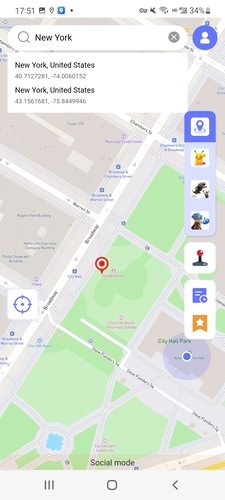
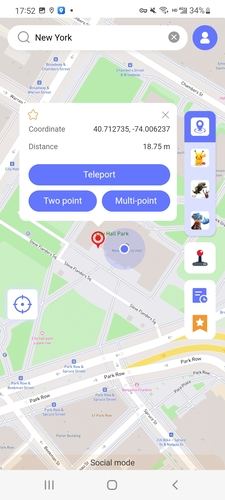
Step 3 Now, select the location and hit “Teleport” on the map.
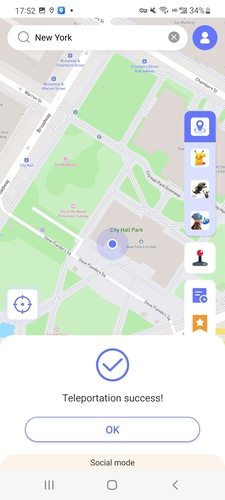
Step 4 Your device GPS is instantly faked, and Life360 will only receive the virtual location without recording your real whereabouts.
Conclusion
Constant monitoring on Life360 can feel like an uphill battle. Official methods like pausing tracking or deleting your profile often disrupt group dynamics and make it obvious that something has changed, creating suspicion instead of real privacy.
MocPOGO Location Changer offers a smarter solution. Instead of trying to erase past location data or disable services, it lets you seamlessly manage your location from the source — so your family never knows you’ve made a change.
Gain the breathing room you deserve. Download MocPOGO today and take control of your location — without anyone knowing.