
[4 Quick Ways] How to Turn Off Location on Instagram

Instagram tracks your location in more ways than you realize. It can tag locations on your posts, display your personal position on Instagram Maps, expose your location via Stories, and obtain your GPS data through your phone’s location services. All these tracking behaviors run silently in the background.
So, how to turn off location on Instagram? Here, we help you fully manage your geographic information exposure.

Part 1. How to Turn Off Location on Instagram PC
If you browse Instagram via a desktop browser, you will be glad to know the web version never automatically attaches your location. Unlike mobile phones, computers are not equipped with built-in GPS modules, so Instagram cannot detect your actual whereabouts.
Still, you may unintentionally reveal your location by manually adding location tags while creating posts. Follow these simple steps to avoid this issue:
- When creating posts on the Instagram web page, locate the Add Location input box.
- Keep this field blank without searching for or picking any place.
- Publish your content as usual.
That’s all done. Disabling location-related exposure for Instagram on PC mainly comes down to skipping location tags during posting. You do not need to constantly adjust browser location access permissions for Instagram.
Useful Tip: If you have already added location tags to published posts and wish to delete them, open the target post, tap the three-dot menu icon, select Edit, erase the location tag, and save the changes.
Part 2. How to Turn Off Location Sharing on Instagram
Instagram offers a built-in feature that allows you to share your real-time location with friends via direct messages. Whether you have used this function before or just want to keep it disabled, use the methods below to turn it off completely.
On iPhone:
- Open an Instagram direct message chat.
- Tap the plus icon in the message input bar.
- Select the Location option.
- Hit Stop Sharing My Location if location sharing is enabled.
On Android:
- Launch Instagram and enter a direct message conversation.
- Tap the plus icon inside the chat box.
- Choose Location from the menu.
- Tap Stop Sharing to disable active location sharing.
Once disabled, your contacts in Instagram direct messages can no longer view your location pin. Note that this setting works independently of post location tags, so remember to adjust both options for full location privacy protection.
Part 3. How to Turn Off Location on Instagram Map
You tend to easily overlook privacy risks brought by Instagram Map. This feature enables your friends to view your position on a real-time map, and you may not even know it is turned on by default. Here is how you can disable Instagram Map location tracking:
- Launch the Instagram app on your mobile device.
- Tap the message icon in the upper right corner to open your inbox.
- Locate the icon bar at the top of the messages page and tap the Maps icon.
- Hit the gear-shaped settings icon to access location preferences.
- Find the setting labeled Who can see your location, then choose No one.
- Tap Done to confirm and save all changes.

After completing these steps, your location will no longer be visible to any followers on Instagram Map. This is a vital privacy setting, as plenty of users never realize this map feature exists until others mention it.
Part 4. How to Turn Off Location Services on Instagram
Your mobile system allows Instagram to obtain location data via built-in GPS. Even without adding post location tags, the app may still collect your geographic information silently in the background. To block such background location monitoring, you can take the measures below.
On iPhone:
- Open your device Settings.
- Tap Privacy & Security, then select Location Services.
- Scroll down and find Instagram.
- Select your preferred permission:
Choose While Using the App to limit access only when you open Instagram.
Pick Never if you want to cut off all GPS access to Instagram on your iPhone.

On Android:
- Launch phone Settings.
- Tap Location and enter App Permissions.
- Locate and open Instagram settings.
- Select Don’t Allow to revoke its location access right.

Once finished, Instagram can no longer fetch your real GPS location on both iPhone and Android devices, regardless of your in-app posting and sharing behaviors.
Part 5. How to Turn Off Live Location on Instagram
Your Instagram Stories and live streams may easily expose your real location, so it is necessary to adjust relevant privacy settings in advance. Instagram provides dedicated options to restrict viewership of your stories and live content, which effectively protects your location privacy.
Follow these steps to stop Instagram from displaying your location during live broadcasts:
- Head to your Instagram profile page.
- Tap the hamburger menu icon in the upper right corner.
- Select Settings and privacy.
- Scroll down and choose Story, live and location or simply Story, based on your app version.
- Tap Hide Story and Live From.
- Select specific accounts to block them from viewing your stories and live streams. You can also use this setting to manage who can see location tags attached to your stories.

This setting will not erase original location data from your photos, yet it lets you fully control who can view your geographic information shared via stories and live videos.
Note: Always double-check for location stickers before posting stories. Such location tags only appear if you add them manually, so skip adding them to avoid unwanted location exposure.
Part 6. How to Share a Fake Location on Instagram with MocPOGO
The five methods above come with a trade-off: turn off location services, and you lose access to location-based features like location stickers, nearby posts, or Instagram Map. What if you could keep all those features working while showing a completely different place?
Here’s where MocPOGO makes the difference.
MocPOGO is a GPS location changer that works at the system level. Instead of just denying Instagram location access, it feeds the app a fake but convincing GPS signal. Instagram will think you’re anywhere you want, London, Sydney, or a different neighborhood across town, while your real location stays hidden.

168,282 people have downloaded it.
- Post from anywhere while keeping real location hidden.
- Spoof GPS to use all Instagram location-based features.
- Simulate movement to keep your location spoof realistic.
- Protect your real address while staying visible to others.
- Save and switch your favorite fake locations in one click.
- Support the latest iOS 26/Android 16.
Key Features of MocPOGO for Instagram
✓Set Any Virtual Spot Worldwide
When you add location tags or share positions on Instagram, the platform only receives your customized settings. It perfectly keeps your actual residence, daily routes and real activities hidden from public view.
✓Keep All Instagram Features Active
Unlike simply turning off location services, which disables location stickers, Instagram Map, nearby posts, and explore content, MocPOGO enables you keep every feature fully functional while showing a fake location. You can still tag places, share your fake spot on the map, and discover local content, all without revealing where you actually are.
✓Custom Locations for Content Creation
Set your preferred geographic spots freely to make your Instagram posts appear to be posted in major cities or popular destinations. This helps you reach audiences from diverse areas and enrich your content layout effortlessly.
✓Universal Location Spoofing for All Location-based Apps
MocPOGO adjusts the overall device GPS status, so the fake location takes effect across all location-based apps. Whether you use Instagram, Twitter, Snapchat, Tinder, Pokémon GO or other location-enabled platforms, this single tool can unify your location privacy management across all usage scenarios.
How to Use MocPOGO to Fake an Instagram Location
Setting up MocPOGO takes only a few simple steps. Follow the guide below to get started easily:
Step 1 Download and install the MocPOGO app on your iPhone or Android device.
Step 2 Pick your ideal virtual location. Use the built-in search bar to look up any city, specific address or famous landmark.
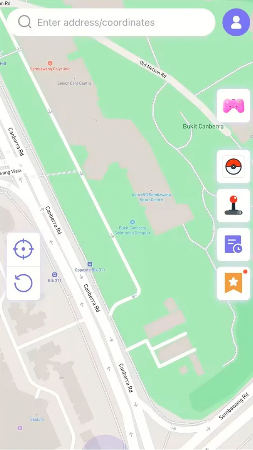
Step 3 Hit the Teleport button.
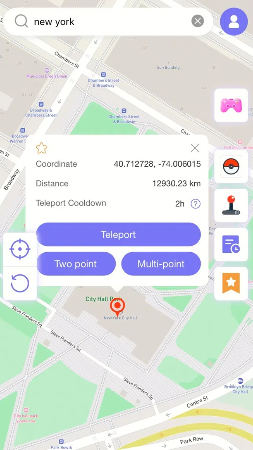
Step 4 MocPOGO for iOS will ask you to configure VPN, click on “Configure VPN” to go on.
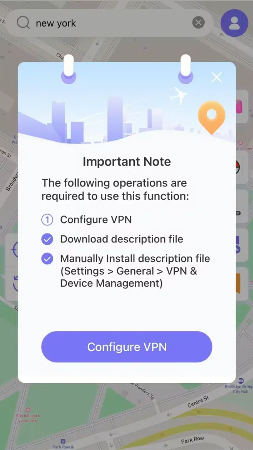
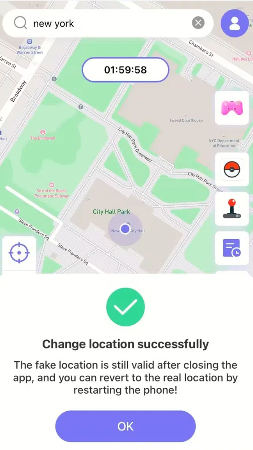
Step 5 Your location will be changed to there instantly. Once you open Instagram, the app will fully recognize this virtual location as your real position. You can tag your posts with your location or share your fake location with friends in direct messages.
Conclusion
Instagram tracks your location through far more channels than most users realize, including post location tags, Instagram Map, direct message location sharing, Stories visibility and background GPS data collection. Fortunately, you can disable all these tracking options one by one.
If you pursue stronger location privacy protection, MocPOGO Location Changer comes highly recommended. This user-friendly GPS spoofer supports seamless device location change, hiding your actual location from Instagram and all other location-based apps. Whether you want to shield your daily routine, secure your online privacy, or simply have fun creating content from “anywhere in the world”, MocPOGO gives you full, flexible control.