

Why & How to Fix Snapchat Location Not Updating

You open Snap Map to check your friend’s location, only to find their Bitmoji has been stuck in the same place since yesterday afternoon. Even your own location dot remains stuck at a spot you left hours ago. This issue is truly annoying yet completely solvable.
In most cases, Snapchat location failing to update is not a random glitch. This guide covers all root causes and practical fixes to resolve the problem efficiently.

Part 1. Why is My Snapchat Location Not Updating?
When your Snap Map location freezes, either your own spot stays fixed or friends’ Bitmojis stop moving, this issue usually arises from overlooked settings and in-app behaviors. Here are the main causes of this problem.
1. Snapchat Only Updates Location When the App Is Open: Snapchat only updates your location when the app is actively open. Minimize or close it, and your last known location stays on the map, unlike always-on services like Google Maps.
How Often Does Snapchat Refresh Location?
Snapchat only updates your location while the app is open. Leave it closed for about 6 hours, and your position becomes outdated; poor network can freeze it even sooner. (Live Location is different: it keeps updating in the background, but that’s not the standard Snap Map.)
2. Disabled Location Permissions: Snapchat needs persistent GPS access. If you’ve denied or restricted it, location updates stop immediately.
3. Enabled Ghost Mode: Ghost Mode hides your location entirely. If you turned it on accidentally, your Bitmoji will disappear from the map.
4. Turned-off Background App Refresh: Disabling Background App Refresh prevents Snapchat from syncing location when the app is closed, causing delayed or stuck updates.
5. Unstable Network & Weak GPS Signal: Poor internet or being indoors/crowded areas can delay or freeze location updates.
6. Activated Power Saving Modes: Low Power Mode (iPhone) or Battery Saver (Android) limits background activity, often suspending Snapchat’s location functions.
7. Outdated Snapchat Version: Older versions carry unfixed bugs. Updating usually resolves location issues.
8. System Glitches & Corrupted Cache Files: Damaged cache data can freeze Snap Map locations, often after system updates or app crashes.
Why is My Snapchat Live Location Not Updating?
If Live Location fails, check your internet connection, power saving settings, and location permissions, or confirm you haven’t secretly turned off sharing.
Part 2. 7 Easy Ways to Fix Snapchat Location Not Updating
After learning the main causes, you can quickly resolve this annoying location issue with simple operations. Follow these practical methods to get your Snapchat location back to normal.
1. Launch Snapchat to Refresh Location Data
This is the quickest and most effective solution you can try first. Simply open Snapchat and wait for it to load completely, then recheck Snap Map. As standard Snapchat only syncs location when the app is active and displayed on screen, leaving it open for 10 to 15 seconds is enough to send your latest location to the map.
2. Stabilize Your Internet Connection
Swap between Wi-Fi and cellular data to test location sync performance. If you stay connected to Wi-Fi, move closer to the router for stronger signals. A steady network is essential for Snap Map to transmit and receive location information smoothly.
3. Enable Background App Refresh
On iPhone: Go to Settings, scroll to Snapchat, and turn on Background App Refresh.

On Android: Open Settings > Apps > Snapchat > Battery, then choose Unrestricted or enable background activity access.

4. Disable Ghost Mode
Pinch inward on the Snapchat camera screen to open Snap Map. Tap the settings icon at the top right corner. Switch off Ghost Mode and set your preferred location visibility range. Wait a moment, and your Bitmoji will show up normally again.

5. Enable Snapchat Location Permissions
For iPhone: Go to Settings > Snapchat > Location, then select While Using the App or Always.

For Android: Navigate to Settings > Apps > Snapchat > Permissions > Location, and allow location access only during app usage.

6. Clear Snapchat App Cache
Tap your profile icon inside Snapchat, open the Settings menu, scroll down to Account Actions and tap Clear Cache. This removes faulty temporary files that trigger location glitches, without deleting your personal account data or saved snaps.
7. Install the Latest Snapchat Update
Visit App Store for iPhone or Google Play Store for Android, search for Snapchat and install available updates. Updating the app regularly helps eliminate most location-related bugs existing in outdated versions.
Part 3. Change and Set Your Snapchat Location Freely Using MocPOGO
Simply fixing location update issues is never enough. You may want to freely manage your Snapchat location, and MocPOGO is perfectly built to meet this need.
As a practical GPS location spoofer, MocPOGO enables you to place your Snapchat avatar anywhere across the globe with a single click without stepping out in person. The customized location updates smoothly on Snap Map, permanently sorts out Snapchat location not updating, lagging and freezing errors, and keeps your shown position always consistent with your settings.
It also lets you adjust your displayed geographic position flexibly to match any scene or demand. It fully supports Android, iOS, Windows and Mac systems, bringing stable and reliable position service across all your devices.

168,282 people have downloaded it.
- Set any location on Snapchat, no outdated Snap Map.
- Simulate realistic movement to keep your Bitmoji natural.
- Protect your real address while staying visible to friends.
- Fix Snapchat location not updating issues easily.
- Control your location on Instagram, Twitter, and more.
- Work perfectly with Tinder, Hinge, and other dating apps.
- Support the latest iOS 26/Android 16.
Key Features of MocPOGO
Change your Snapchat location to anywhere: Instantly change your Snap Map position by selecting any spot on the map. No more waiting for the app to refresh. It efficiently fixes stuck Snapchat location status and sets custom locations to unlock region-locked Snapchat filters effortlessly.
Fake Live Location with Multi‑Spot Movement: Instead of a suspicious instant jump, use Multi‑Spot Mode to plan a realistic walking route. Your Bitmoji moves between multiple stops at a natural speed, making your live location on Snapchat appear authentic. It’s the smarter way to fake a live location without triggering unwanted attention.
Keep Your Real Home Address Private: Show a different, safe location on Snap Map while staying visible to friends, better than Ghost Mode.
Safe and Easy, No Device Root/Jailbreak: Unlike most rival tools that force risky system modifications, MocPOGO avoids such changes without jailbreaking iPhone or rooting Android devices. This protects your phone from potential security threats.
How to Change Location on Snapchat with MocPOGO
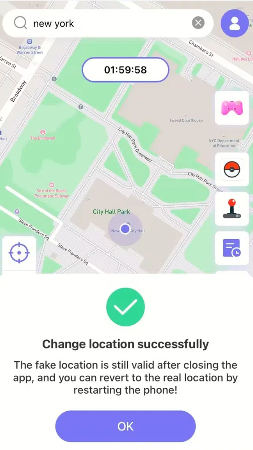
Step 1 Download and install the MocPOGO app on your iPhone or Android device.
Step 2 Enter the target address or coordinates in the search box.
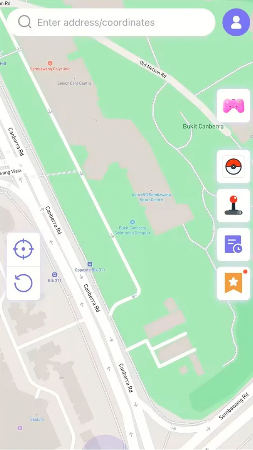
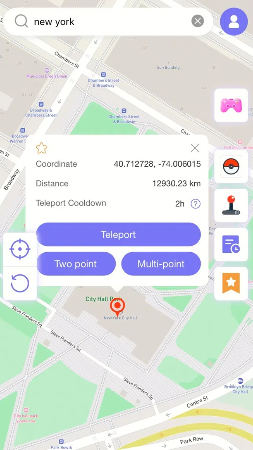
Step 3 Now, select the location and hit “Teleport” on and map.
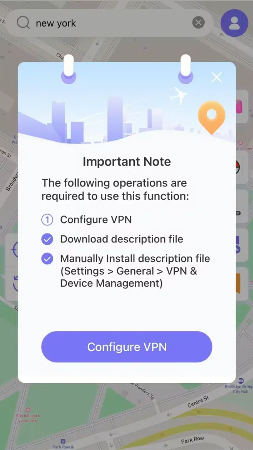
Step 4 MocPOGO for iOS will ask you to configure VPN, click on “Configure VPN” to go on.
Step 5 Your device GPS will refresh right away to take instant effect on Snapchat. Open Snapchat and share your location.
Part 4. How to Make Snapchat Location Not Update
If you intend to keep your Snapchat location fixed and stop automatic refresh, so friends cannot track your real-time positions, try these five practical methods below.
1. Turn On Ghost Mode
Open Snapchat and enter Snap Map. Tap the settings icon in the upper right corner, then turn on Ghost Mode. This will hide your Bitmoji from all users on Snap Map. You can still view others’ shared locations, while no one else is able to check yours.
2. Turn Off Precise Location
On iPhone, head to Settings > Snapchat > Location, then disable Precise Location. The app will only obtain your approximate area instead of exact coordinates, so it cannot show your accurate position on the map.
3. Turn Off Background App Refresh
Once this feature is off, Snapchat cannot update your location silently in the background. Refer to the relevant settings steps mentioned earlier, and switch this permission off directly.
4. Activate Power Saving Modes
As stated before, Low Power Mode and Android Battery Saver will limit Snapchat’s background location tracking functions.
iPhone: Go to Settings > Battery and enable Low Power Mode.

Android: Turn on Battery Saver via quick settings panel.

5. Fully Close Snapchat When Idle
This is the most effective way. Since Snapchat only refreshes location when the app is active, fully closing it instead of just minimizing it keeps your location stuck at the last recorded spot. Your old location will even vanish automatically after several hours.
Take Back Control of Your Snap Map
Snapchat location not updating stems from common triggers: the app stays closed, location permissions get restricted, or Ghost Mode is accidentally enabled. Following the seven practical solutions listed above can resolve nearly all such daily issues effortlessly.
Looking past basic fixes to fully customize your displayed position on Snap Map, MocPOGO Location Changer for Snapchat is your perfect pick. It empowers you to alter your virtual GPS effortlessly and resolve all kinds of Snapchat positioning troubles easily. Download MocPOGO now and set your Snapchat position to any desired spot within just one minute.