
How to Play Pokémon GO on PC Safely: 3 Working Methods

You’ve been pacing back and forth across your room for hours, phone battery draining fast, just to hatch an egg. The physical grind of chasing outdoor spawns often clashes with real-world schedules, bad weather, or simple fatigue.
Many players wonder if there’s a more comfortable way to enjoy the game without constantly walking miles outside. Playing Pokémon GO on PC lets you manage your account, catch rare Pokémon, and join raids from the comfort of your desk.

Part 1. Can You Play Pokémon GO on PC?
When looking into playing Pokémon GO on PC, the first thing to understand is that there is no official PC client. The game is built as a mobile augmented reality experience designed for smartphones.
Despite this, many players still look for practical ways to run the game on a desktop. The reasons are simple: a bigger screen makes it easier to spot and catch Pokémon, you save phone battery during long sessions, and you can play from home without dealing with bad weather or long travel.
Part 2. How to Play Pokémon GO on PC
Finding a practical way to play Pokémon GO on PC means exploring various desktop alternatives. Since Niantic actively blocks most standard Android emulators from running location-based games, you need to be aware of the risks and limitations before trying any method.
Method 1: Using Android Emulators
Android emulators such as BlueStacks, MEmu, NoxPlayer, and LDPlayer allow you to run Pokémon GO directly on your PC by simulating a full Android environment. They offer a larger screen, keyboard and mouse controls, and the convenience of playing from your desk without draining your phone battery.
These emulators also support performance customization. You can allocate more RAM or CPU cores, and map controls to fit your playstyle. However, results vary greatly depending on your hardware, so always check each emulator’s system requirements before installing.

Important Warning:
Standard emulators are not officially supported by Niantic. They are often detected and blocked. If you choose to try this route, we strongly recommend using a secondary account and avoiding any GPS manipulation through the emulator itself.
How to Install & Run Pokémon GO via Android Emulator
- Download and install your preferred emulator (BlueStacks, MEmu, NoxPlayer, or LDPlayer) from its official website.
- Launch the emulator and sign in to the Google Play Store through it.
- Search for Pokémon GO and install the game.
- Open Pokémon GO, sign in with your account, and start playing from your desktop.
Method 2: iOS & Android Phone Screen Mirroring to PC
If you only want a bigger screen without GPS features, screen-mirroring software can project your phone display onto a computer monitor. The game stays on your phone, so there’s no emulator detection risk.
For iOS: Use AirPlay or trusted third-party tools like Apowersoft and LonelyScreen to cast your screen.
For Android: Use built-in Cast features or Scrcpy for USB control and low-latency viewing.
How to Mirror Your Phone Screen to PC
- Make sure both your phone and computer are on the same Wi-Fi network.
- Activate AirPlay, Cast, or your mirroring tool from your phone’s quick settings.
- Select your computer from the available devices, then open Pokémon GO on your phone to view it on your desktop monitor.
Method 3: Cloud Android Virtual Machine
Another option is renting a virtual Android phone hosted on remote cloud servers. You manage everything from a web browser without running anything locally on your hardware.
Keep in mind that cloud phones also run a virtual Android environment, which may trigger the same anti-emulator detection as local emulators. There’s no guarantee this method will work reliably for Pokémon GO, and it also carries similar risks.
How to Use a Cloud Android Phone for Remote Pokémon GO Play
- Create an account on a cloud phone platform and select a hosting plan.
- Launch the virtual device in your browser dashboard.
- Download Pokémon GO from the built-in app store within the cloud environment.
- Log in and play from your browser.
Part 3. How to Spoof Pokémon GO on PC
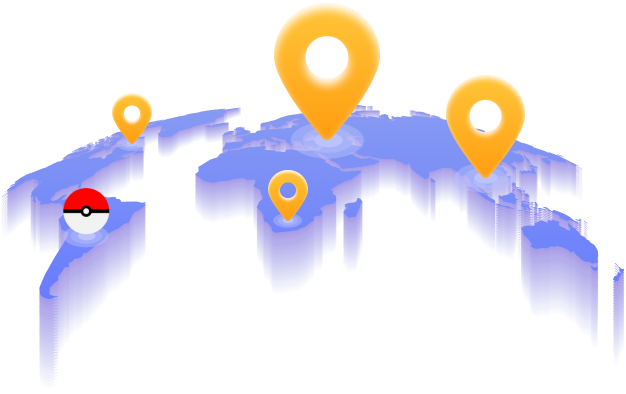
Beyond playing on a bigger screen, you might also want to catch region-locked Pokémon or join distant raids from your desktop. MocPOGO is a GPS spoofing tool that connects directly to your device, letting you teleport your avatar anywhere on the map.
Running on your phone or computer, MocPOGO makes location spoofing simple. You can reach rare spawns in distant cities, simulate walking routes for eggs hatching, and even auto-catch Pokémon, all without leaving your desk.
168,282 people have downloaded it.
- Teleport to any global hotspot and access rare spawns from your desktop.
- Steer your avatar with your keyboard or mouse using the virtual joystick.
- Auto-catch Pokémon and spin PokéStops with Go Catcher while you multitask.
- Newly released Native Mode: spoof iOS location without modded apps for all LBS apps safely.
- Set two-spot or multi-spot routes to hatch eggs without leaving your desk.
- Track cooldown timers to teleport safely between locations without risk.
How to Spoof Pokémon GO on PC with MocPOGO
Step 1 Download and launch MocPOGO on your Windows PC, then select Native Mode from the main interface.

Step 2 Complete the required certificate and proxy setup on your iPhone to enable location features correctly.

Step 3 Enter your desired destination or GPS coordinates into the search bar, then hit the Teleport button.

Step 4 Your location updates at once. Launch Pokémon GO on your connected device (or emulator) and your avatar will appear at the new spot, ready to catch rare spawns.

Part 4. Pro Tips for Safe Pokémon GO PC Spoofing
Playing Pokémon GO on PC requires following safety rules to protect your account. Keep these strategies in mind:
- ✓Tip 1. Respect cooldown timers after every teleport. Waiting up to two hours for long-distance jumps helps prevent soft bans and keeps your account in good standing.
- ✓Tip 2. Use multi-spot routes with human-like walking speeds. That said, instant jumps look unnatural, so simulate real movement whenever possible.
- ✓Tip 3. Import GPX route files to automate farming loops. This lets your character walk pre-planned paths smoothly, which is especially useful for egg hatching and Candy farming.
- ✓Tip 4. Target region-locked Pokémon with specific coordinates. After all, checking spawn data and IV stats before teleporting helps you catch rare creatures more efficiently.
Conclusion
Playing Pokémon GO on PC opens up new ways to enjoy the game, whether you use an Android emulator, mirror your phone screen, or try a cloud phone. Each method has its own advantages, so pick the one that fits your setup and playstyle.
If you also want to spoof your GPS location, MocPOGO Location Changer makes it easy to teleport to any spot, simulate walking routes, and auto-catch Pokémon. Built-in cooldown timers also help keep your account safe. Try it today and start exploring new locations from your desktop.