

Full Tutorial: How to Disable Location Services 2026

Every app wants your location. Weather, maps, social media—they all ask. And that constant tracking feels invasive.
Learning how to disable location services is the first step toward reclaiming your privacy. This guide covers everything: mobile, desktop, and browsers. You’ll also discover a smart way to block location access without breaking the apps you use daily.

Part 1. How to Disable Location Services on iPhone & Android
Smartphones collect location data to power maps, weather updates, travel platforms, social media and security features. While these functions ease daily use, they also grant apps continuous access to your real location. To better protect personal privacy, you can either disable location services entirely or restrict permissions for individual apps as you prefer.
1. Disable Location Services on iPhone
Launch the Settings app and select Privacy & Security. Proceed to Location Services, then toggle the top main switch off to cut off location access for all installed apps.
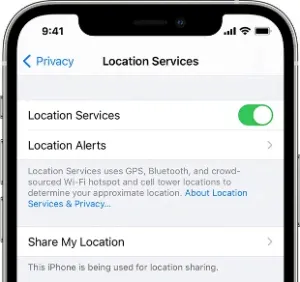
If you only need to limit certain apps instead of full shutdown, stay on this page and tap the target app. You can set its location permission to Never, or adjust location accuracy according to your needs. This way you secure privacy without altering other system configurations.
2. Turn off Location Services on Android
Open Settings and head to the Location section. Disable the master location switch to turn off location tracking across your whole device.

To restrict access for specific apps only, enter app permission settings and revoke their location rights. This flexible mode lets most apps run normally even without precise GPS positioning.
Part 2. How to Disable Location Services on Windows & Mac
Location tracking is not exclusive to mobile phones. Laptops and desktop computers also share your geographic location with apps, browsers and built-in system tools. If you frequently use your computer for work or daily trips, adjusting these location settings is essential.
1. How to Disable Location Services on Windows
Open Windows Settings and navigate to Privacy & security. Choose Location to check device-level and individual app location permissions. Toggle off the main location switch to fully disable system location tracking. You may also keep the main function enabled and only restrict location access for certain apps. This flexible mode lets you keep trusted apps working normally while blocking others.

2. How to Disable Location Services on Mac
Launch System Settings on your Mac and select Privacy & Security. Click Location Services to enter the management page. You can turn off the entire location service feature, or disable permissions for specific apps separately. It works perfectly if you hope to block location access for Safari, Maps and similar software while keeping other tools available. Once disabled, related apps will fail to display local content and real-time navigation guidance.

Part 3. How to Stop Location Tracking in Web Browsers
Even after adjusting location settings on your phones and computers, web browsers can still keep requesting your location data. Most websites need this access to show local weather results, nearby shops and navigation routes. Therefore, it is necessary to manage browser location permissions for complete privacy protection.
1. Chrome
Launch Chrome and head to Settings, then select Privacy and Security. Open Site Settings and locate the Location option. You can fully block location request prompts or check and revoke existing location access for authorized websites. Many shopping, catering and travel platforms send unnecessary location requests, and disabling this function can stop Chrome from letting websites obtain or use your real location freely.

2. Safari
Safari’s location access is controlled by both built-in browser permissions and system privacy options. On Mac devices, you can adjust website location access in Safari settings, and further manage relevant limits via macOS privacy settings. On iPhone, Safari directly follows the global location permissions of your device. Once you disable system location services or restrict access for Safari, all websites opened in this browser will fail to get your precise location information.

3. Firefox
Open Firefox Settings and enter the privacy permission management panel. Find the location access section to check all websites that have obtained your location rights. You can delete existing authorization records or block all future location requests all at once. In this way, websites cannot track your geographic position without your explicit approval. This method is popular among Firefox users, as it boosts browser privacy without modifying bulk system settings.

Part 4. Can You Still be Tracked If Your Location Services are Off?
The answer is yes. Disabling location services only cuts off GPS-based location requests from apps, yet it cannot fully hide your device trace. Websites can roughly pinpoint your region via your IP address. Besides, public Wi-Fi connections, cellular base stations and linked account activities are all able to expose your general position. To sum up, turning off location services does improve personal privacy, yet it cannot remove all tracking methods completely.
What Happens When You Turn Off Location Services?
Once you disable location services, plenty of common apps will lose core practical functions. Navigation tools can no longer provide real-time route guidance, and weather apps fail to deliver accurate local weather updates. Social and dating platforms will stop displaying nearby users and location-related features. Moreover, built-in device tracking functions like iPhone Find My and Android device locating tools will also run abnormally without location permission.
In brief, this operation effectively boosts privacy protection, but it inevitably lowers the usability of most daily-used applications and online services.
Part 5. The Best Way to Turn Off Location Services Without Being Tracked
You do not have to fully disable location services to protect your privacy. It is possible to hide your real location while continuing to use all location-based apps smoothly. MocPOGO fills that gap perfectly.
This reliable location spoofing tool enables you to alter your displayed GPS position and simulate realistic movements on nearly all devices. It comes with practical functions including instant location teleportation, multi-spot route planning and flexible joystick control. Fully compatible with iPhone, Android, Windows and Mac, it perfectly replaces rigid location permission settings.

168,282 people have downloaded it.
- Mask your true location while keeping apps functional.
- Protect your privacy while using dating, social, and map apps.
- Set custom fake locations to match your privacy needs.
- Fix common GPS and location errors across apps.
- Save your favorite fake locations and switch in one click.
- Support the latest iOS 26 and Android 16 versions.
Key Features of MocPOGO
1. Hide your real location to avoid being tracked
Simply enter any target city or specific address to set a virtual position instantly. All installed apps will only detect your fake location instead of your actual spot, effectively stopping real-location tracking.
2. Keep apps working without disabling location services
With MocPOGO, you can keep all social, dating, navigation and family tracking apps working normally, while your true location remains fully hidden. It works with popular platforms and games including WhatsApp, Tinder, Instagram, Life360 and Pokémon GO.
3. Simulate natural movements for undetectable use
MocPOGO supports two-point routes and multi-point path planning. You are able to adjust moving speed freely to create authentic traveling tracks, making your fake location totally credible.
4. Smart privacy management for long-term use
It also offers practical tools like route history saving, favorite location bookmarking. You can set privacy modes permanently, instead of repeatedly adjusting system location permissions every single day.
How to Share a Fake Location with MocPOGO
If you wish to secure your location privacy while keeping all apps fully functional, follow these easy steps:
Step 1 Download the latest version of MocPOGO and install it on your computer. Open the tool and click on the Start button.
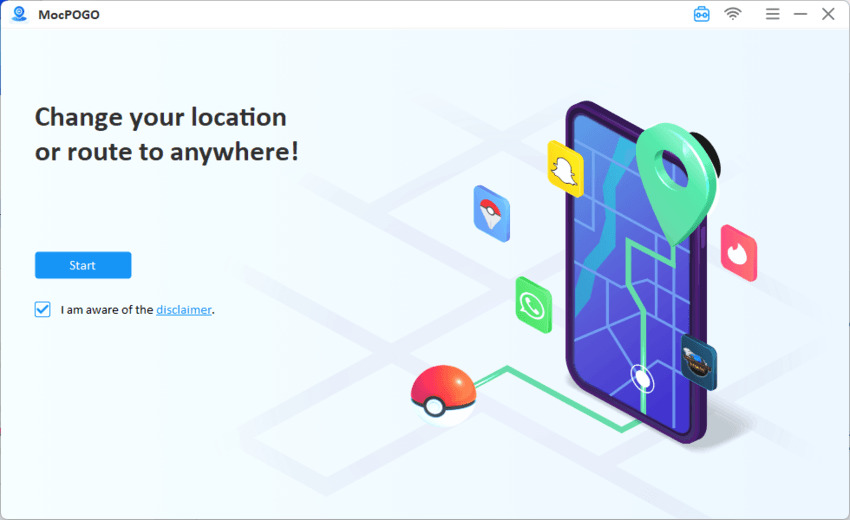
Step 2 Connect your iPhone or Android device via USB.
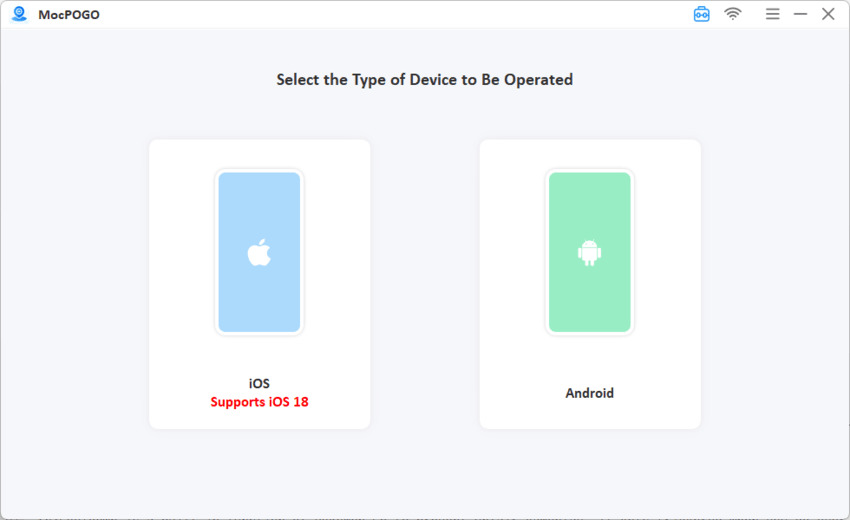
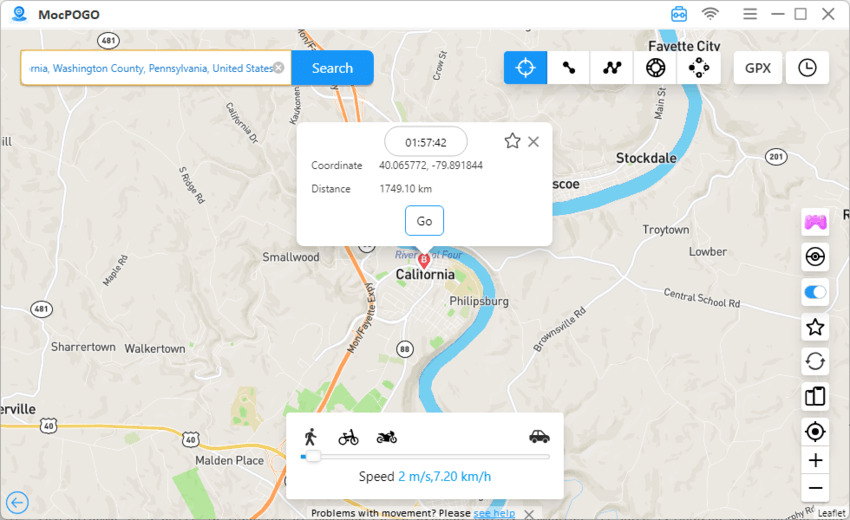
Step 3 Search for your desired city, specific address or precise coordinates.
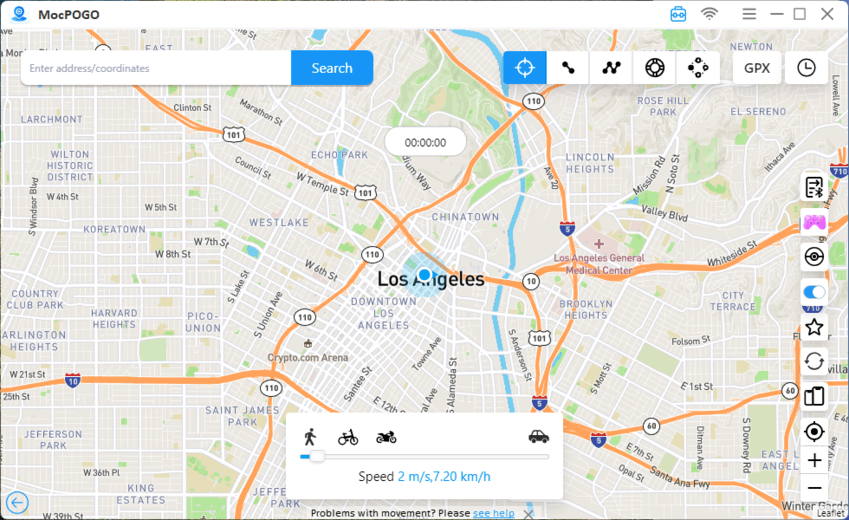
Step 4 Hit the GO button to instantly set and apply your virtual GPS location. Launch any location-based app, and you can use it smoothly with the new fake location.
Conclusion
Disabling location services is a straightforward way to protect your digital privacy. It stops unnecessary tracking on phones, computers, and browsers.
Even so, fully turning off all location functions will disrupt daily practical tools, including navigation maps, weather forecasts and nearby search services. For this reason, most users prefer flexible location management rather than complete shutdown.
If you aim to hide your actual location while ensuring all apps work perfectly, MocPOGO stands out as the ideal choice. It enables you to customize virtual GPS positions, simulate realistic movements and take full control over location usage. It is undoubtedly the most practical solution for users who prioritize both privacy and daily convenience.