

Why Pokémon GO Can’t Spin PokéStops & How to Fix It Fast

If Pokémon GO can’t spin PokéStops for you, the swipe does nothing — no items, no XP, no animation. It is a small problem that can wreck a good play session, especially when you are standing right on top of the stop. The good news is that the cause is usually simple: your speed, a cooldown, a full bag, or a weak signal. This guide covers each cause, the matching fix, and a faster way to auto-spin stops without walking.

Part 1. Common Reasons Why You Can’t Spin PokéStops in Pokémon GO
Six problems cause most cases of Pokémon GO not spinning a PokéStop.
Speed Lock (Moving Too Fast)
The game blocks spinning at vehicle speeds. The Photo Disc locks and asks you to try again later. Community tests put the spin lock at roughly 35 km/h (about 22 mph); Niantic has never published the exact figure.
Soft Ban / Cooldown Violation
A soft ban is a temporary lock. It happens when your location jumps farther than you could travel since your last action. Community charts suggest waits of about 2 minutes for 5 km, 35 minutes for 100 km, and up to 2 hours for very long jumps.

Daily Spin Limit Reached
There is no official spin cap, but player testing points to roughly 1,200 spins a day. Hitting it brings the same “try again later” message. Normal players never get close. That is one spin every 72 seconds, around the clock.
Full Item Bag
When your bag is full, the Photo Disc will not spin for items, XP, or Eggs. The stop is not marked as visited, so it stays blue. If you are just under the limit, one last spin can still push you over it.

GPS Drift or Weak Network
The game needs a steady location fix and a live connection. Inside buildings or on weak data, your dot can wander. You can only spin stops within 80 meters (about 262 feet), so drift can push you out of range. A spin can also fail to reach the server.
Bluetooth Device Glitch
Pokémon GO Plus + can auto-spin stops for you. If the device and the app fall out of sync, a spin may show on the device while no items arrive. A full bag looks the same, so check that first. The device will vibrate three times and flash white when the bag is full.
Part 2. How to Fix Pokémon GO Can’t Spin PokéStops
Start with the cause that matches your situation.
Slow Down & Wait Out the Speed Lock
Spinning works again once you slow down. On a bus or train, wait until you stop or get off. Walking pace is always fine. If one stop stays locked, try the next.
Respect the Cooldown Timer
A spun stop turns purple and restocks after 5 minutes. Do not tap it early. After a soft ban, stay in place and avoid spinning or catching until the wait is over. The same goes for the daily limit: stop spinning and try again later.
Clear Out Your Item Bag
Open your Items and discard what you do not use. Old Potions, spare Revives, and extra Berries pile up quickly. You can also buy bag upgrades with PokéCoins, and each one adds 50 slots. Free up a few dozen slots, then spin again.
Refresh GPS & Network Connection
Switch between Wi-Fi and mobile data. Turn on high-accuracy location in your phone settings. Then move to open space and walk within 80 meters of the stop. When the box above the blue square opens, you are in range.
Reconnect External Devices & Restart App
Turn Bluetooth off and on, close Pokémon GO fully, and reopen it. Then reconnect your Plus +. Open your Journal afterward. It lists which items you received and where.
Part 3. How to Auto-Spin PokéStops in Pokémon GO Without Walking
MocPOGO is an all-in-one GPS location changer for Pokémon GO. It works on Windows, Mac, iOS, and Android, and it doesn’t need jailbreak or root. Its tools target the exact problems above.

168,282 people have downloaded it.
- Change GPS location on iOS device without jailbreak.
- Teleport instantly to dense PokéStop hubs with just one click on the map.
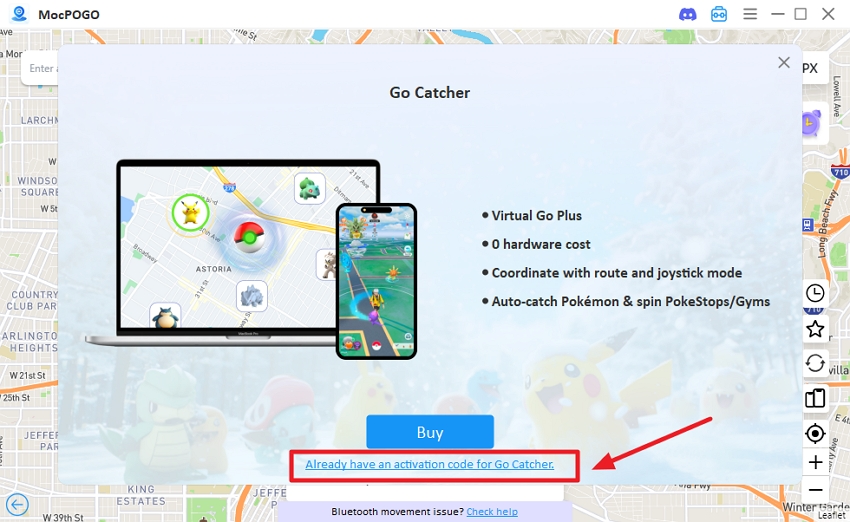
- Catch wild Pokémon and spin nearby PokéStops automatically like a virtual Pokémon GO Plus +.
- Simulate natural GPS movement with joystick and multi-spot route modes.
- Track teleport cooldown time to protect your account from locked spins or catches.
- Support the latest iOS 27/Android 17.
How to Set Up Auto-Spin with Go Catcher
- Open MocPOGO and connect via Bluetooth or USB/Wi-Fi to reach the main screen. Tap the Go Catcher icon to turn it on.
- Download iWhereGo Genius and launch the modified Pokémon GO it installs.
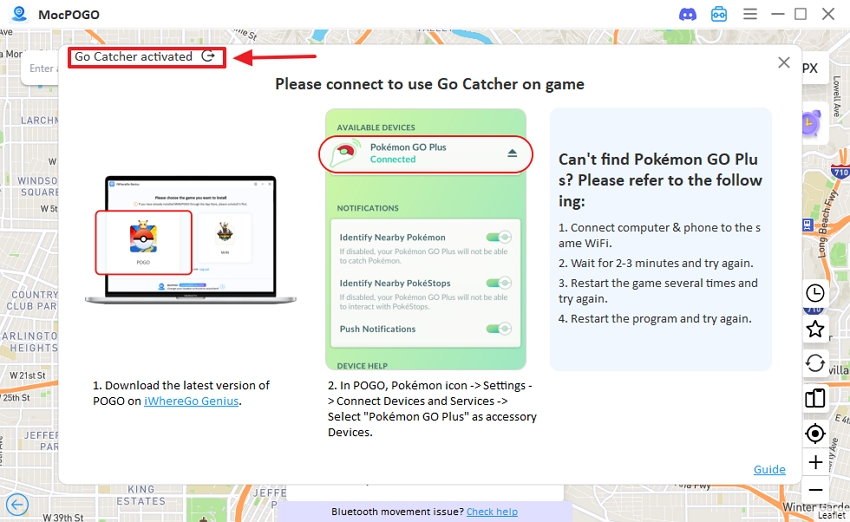
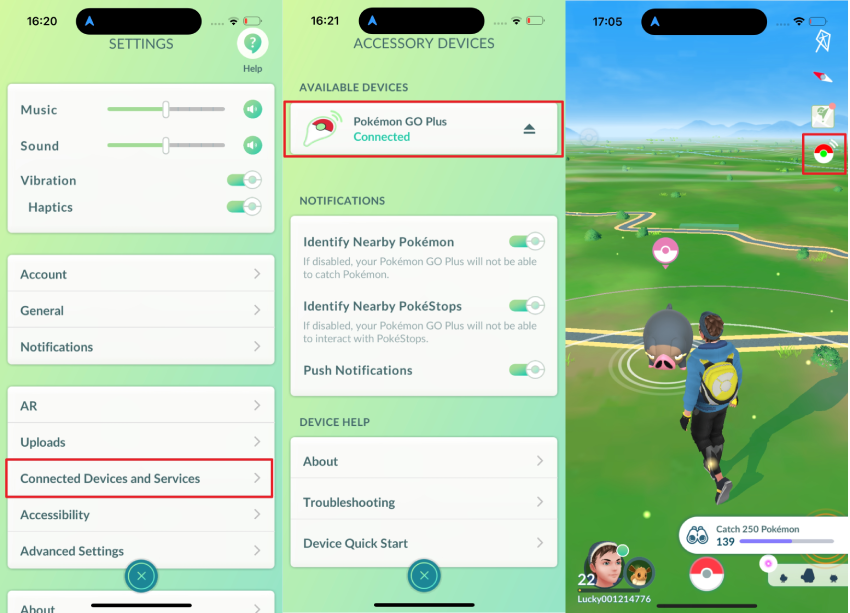
- In the game, open Settings > Connected Devices and Services. Tap the virtual Pokémon GO Plus (Go Catcher) under Available Devices.
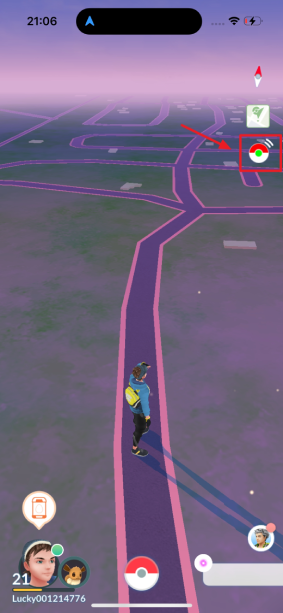
- Back on the map, tap the Poké Ball icon in the top-right corner. Go Catcher now catches and spins as you move.
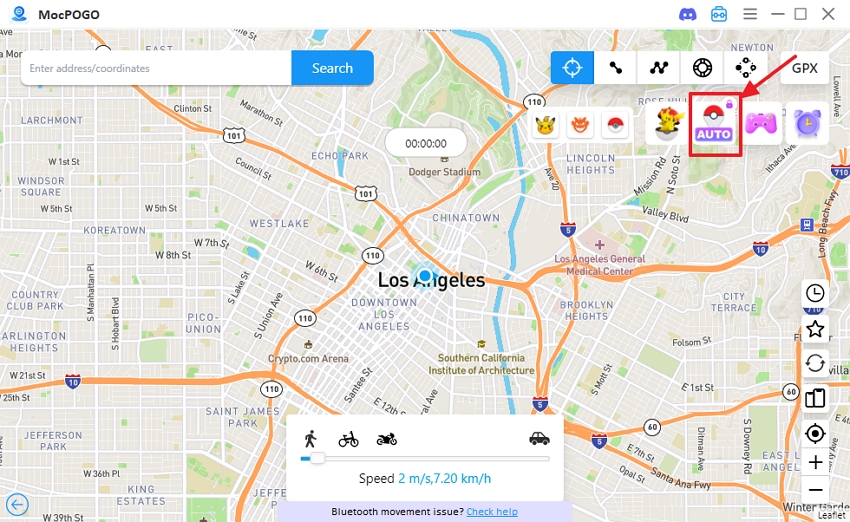
If you’ve already activated this feature, the lock will stay unlocked. If not, tap the icon, enter your email and license code, and you’re set!
Part 4. Troubleshooting Special Cases: “Try Again Later” vs. PokéStop Out of Range
These three messages look alike, but each has a different cause.
1. “Try Again Later” Error Message
What it means: The game rejected your spin. The usual causes are moving too fast, an active soft ban, or the daily spin limit.
Quick fix: Stop moving, wait a few minutes, and try a different stop. If it keeps happening, wait out the cooldown described above.
2. “This PokéStop Is Too Far Away” (Out of Range)
What it means: You are outside the 80-meter interaction range.
Quick fix: Walk closer until the box above the stop opens. If you are already next to it, refresh your GPS.
3. PokéStop Spins Without Turning Purple or Dropping Items
What it means: The spin did not register. The most common cause is a full bag, which leaves the stop blue because it is not marked as visited. A weak connection can cause the same result.
Quick fix: Discard a few items to free up bag space. Then check your signal, restart the app, and spin the stop again.
Part 5. FAQs About Pokémon GO Can’t Spin PokéStops
These are the questions readers ask most after trying the fixes above.
Summary
When Pokémon GO can’t spin PokéStops, check the simple things first. Look at your speed, cooldown, bag space, signal, and connected devices. Most problems clear in minutes.
If you want to skip the walking, MocPOGO Pokémon GO Spoofer brings one-click teleport, joystick and route movement, Go Catcher auto-spin, and a built-in cooldown timer into one app. Try the fixes above first. Then test MocPOGO when you want spinning on autopilot.


