


8 Quick Ways to Fix Tinder Location Wrong

You just got back from a weekend getaway. You open Tinder, only to find something off — your matches still show up from the city you visited three days ago. Or you haven’t traveled at all, yet Tinder pins you 40 miles away from your actual spot. Frustrating, right?
Tinder location wrong problems happen all the time. A bad location can quickly spoil your Tinder dating experience. This guide helps you to resolve Tinder location wrong quickly.

Part 1. Why is My Tinder Location Wrong?
Before jumping into fixes, it’s helpful to figure out what’s triggering the issue. Below are the most common reasons for Tinder location wrong errors:
- Distance preference is too narrow: If your maximum distance is set very small, Tinder may show cached profiles instead of refreshing correctly.
- Background App Refresh is off: Tinder can’t update your location while running in the background.
- Poor or unstable GPS signal: Indoors, in basements, or places with weak satellite reception, GPS accuracy drops significantly.
- Wi-Fi or network issues: Tinder combines GPS with network data to pinpoint your location. If your connection is unreliable, your location may be wrong.
- Tinder Passport is enabled: If you used Passport to swipe in another city and forgot to turn it off, Tinder will keep using that pinned location.
- VPN or proxy is enabled: A VPN doesn’t block your GPS, but it creates a mismatch between your IP location and GPS coordinates, which can confuse Tinder.
Part 2. 8 Easy Methods to Fix Tinder Location Wrong
Let’s dive into the actual fixes. Try them in order, most users solve the issue within the first few steps.
Fix 1. Restart the Tinder App
It may sound simple, but restarting the app clears temporary software glitches and forces Tinder to load fresh GPS coordinates.
On iPhone, swipe up from the bottom and swipe the Tinder app card away.
On Android, tap the recent apps button and close Tinder completely. Reopen Tinder and check if your location updates normally.
Fix 2. Toggle Airplane Mode
This simple trick instantly resets your phone’s cellular, Wi-Fi and GPS functions. Turn on Airplane Mode, wait 15–20 seconds, then disable it. Once your network signal restores, open Tinder, and your wrong location will often fix itself automatically.

Fix 3. Check Your Network Connection
Tinder determines your location by combining GPS, Wi-Fi triangulation and cellular network data. A weak signal or frequent network switching easily causes inconsistent location results. Try switching between Wi-Fi and mobile data to test the effect. Public networks or crowded hotspots can also lead to Tinder location errors.
Fix 4. Log Out and Log Back Into Tinder
Over time, your Tinder account may store outdated location data. Logging out completely forces Tinder to start a new session and pull your real-time GPS coordinates. Head to Settings > App Settings > Log Out, wait one minute, then sign back in. Relaunch Tinder and confirm your location has refreshed correctly.
Fix 5. Check Tinder Location Permissions
If Tinder lacks proper location access permissions, it will rely on rough estimated location data, which easily leads to Tinder location wrong errors.
On iPhone:
Go to Settings > Privacy & Security > Location Services > Tinder. Enable Location Access and select While Using the App (or Always for background location updates).

On Android:
Go to Settings > Apps > Tinder > Permissions > Location. Choose Allow only while using the app, and make sure Precise Location is turned on.

Also enable Background App Refresh for Tinder, especially on iOS. This lets the app update your location even when you aren’t using it actively.
Fix 6. Restart Your Mobile Device
If restarting the app fails to work, a full phone reboot usually helps.
Power off your phone, wait 30 seconds, then turn it back on. After rebooting, launch Tinder and confirm whether your location shows correctly.
Fix 7. Update Tinder to the Latest Version
Running an outdated Tinder version is a common cause of location glitches. Old app builds contain unresolved GPS bugs that trigger incorrect location display.
Open the App Store on iPhone or Google Play Store on Android, search for Tinder, and tap Update if an update is available. Once updated, restart the app and check if your location is back to normal.
Fix 8. Reinstall Tinder
If all the methods above fail to work, a clean reinstall is the most effective solution. Deleting the app removes corrupted cache files, invalid session records and damaged local data that cause persistent location errors.
Uninstall Tinder from your phone, reboot your device, then reinstall it from the official app store. You can safely log back in, your profile, matches and chat history are saved on Tinder’s servers, so no data will be lost.
Part 3. How to Customize Your Tinder Location with MocPOGO
If you’ve tried all the fixes above and Tinder still shows the wrong location, a professional GPS location changer is your best choice.
MocPOGO is a reliable GPS spoofing tool designed perfectly for this scenario. It comes in handy when you travel frequently, want to browse matches in another city ahead of your trip, or struggle with persistent Tinder GPS errors.

168,282 people have downloaded it.
- Instantly fix Tinder location errors and match anywhere.
- Change your GPS without jailbreaking or modifying your device.
- Protect your real location and personal data.
- Control location on social apps like Twitter, Snapchat, Instagram.
- Run smoothly on Windows, Mac, iPhone, and Android.
- Support the latest iOS 26/Android 16.
Why MocPOGO Stands Out
Set Your Location to Any City in Seconds
Instantly switch your Tinder location to any city worldwide in seconds. Expand your dating radius, meet more matches, and connect with potential dates globally, all without leaving home. Whether you’re traveling soon or just tired of your local scene, one click opens up a world of new possibilities.
Full Compatibility with Popular Dating Apps
In addition to Tinder, MocPOGO works with Bumble, Hinge, Grindr and all mainstream location-based dating apps. It modifies your device GPS coordinates, so dating apps detect the fake location as real, with no warning pop-ups or error alerts.
Strict Privacy Protection
MocPOGO never collects, stores or shares your location history or personal data. Unlike many spoofing apps that harvest user information or flood you with ads, MocPOGO focuses purely on safe, private GPS location control for your device.
How to Change Location on Tinder with MocPOGO
Step 1 Download MocPOGO on your iPhone or Android.
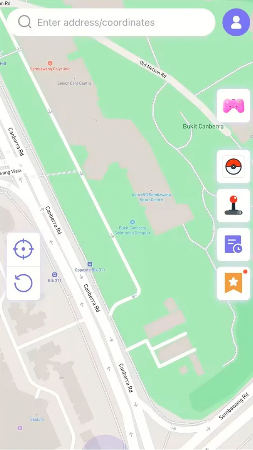
Step 2 Enter the target address or coordinates in the search box.
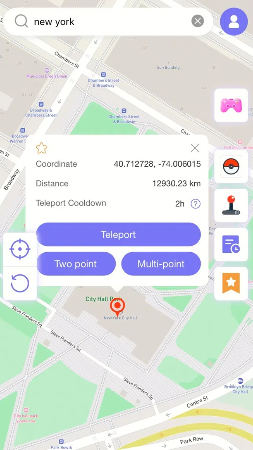
Step 3 Now, select the location and hit “Teleport” on and map.
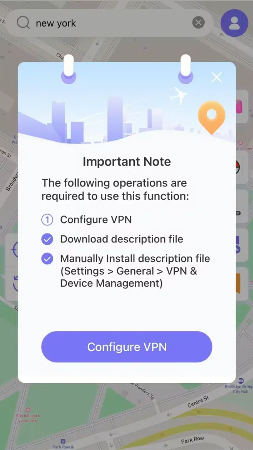
Step 4 MocPOGO for iOS will ask you to configure VPN, click on “Configure VPN” to go on.
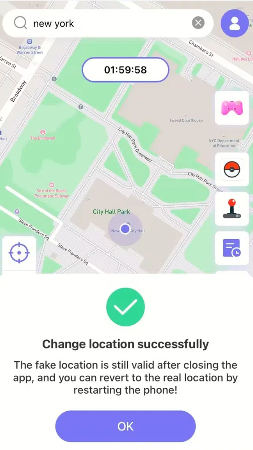
Step 5 Your location will be changed to there instantly. Open the Tinder app on your phone. Your location should now be the one you chose in MocPOGO. Start swiping as if you were there.
Part 4. FAQs About Tinder Location
After working through the fixes for Tinder location wrong, you may still have questions about how the app tracks and updates your location. We’ve answered the most common ones below to clear up any confusion for you.
Q1. How does Tinder track and update my location?
Tinder pinpoints your location using GPS, Wi-Fi signals, and cellular network triangulation. The app fetches fresh location data every time you launch it. If your phone’s GPS updates slowly or location permissions are disabled, Tinder will fail to refresh your position and fall back on old cached location records.
Q2. How accurate is Tinder’s location?
Tinder never shows your exact whereabouts; it only provides a general approximate location, usually accurate within about one mile under normal circumstances.
Its accuracy can be easily affected by GPS signal strength, network quality, and app location permissions. This explains why Tinder location wrong complaints are so common, the app’s positioning system relies on many hidden technical factors most users never notice.
Q3. Does Tinder change your location if you don’t open the app?
No. Tinder will not update your location if you leave the app unused. When you don’t launch Tinder for several days, it continues displaying your last known position. This outdated cached data is often mistaken for a Tinder location error.
Conclusion
Tinder location wrong issues are extremely common and can ruin your dating experience overnight. While basic troubleshooting may work for minor glitches, these quick fixes often only offer temporary relief.
If you keep struggling with incorrect or outdated Tinder location, MocPOGO is your ultimate long-term solution. It customizes your GPS position effortlessly, works perfectly with Tinder and other dating apps, and delivers a safe spoofing experience. With MocPOGO, you can say goodbye to persistent Tinder location errors forever.