
How to Turn Off Location on Grindr with 4 Easy Methods

You’re sitting in a coffee shop waiting for a date. You open Grindr, and your profile shows “450 feet away” right beside your name, letting anyone nearby pinpoint exactly where you’re seated. It feels deeply invasive, and the privacy risk is very real.
Grindr connects you with nearby users but exposes your exact whereabouts, posing a critical privacy threat. If you’re wondering how to turn off location on Grindr and take back control, there are real, working ways to shut this down completely.

Part 1. Does Grindr Show Your Location?
Yes, it does. The app shows your distance to other users by default. Even if you turn off “Show My Distance,” your profile stays on the grid, sorted by how close you are to others, which means people can still approximate your location.
This matters more than most people realize. Grindr has a documented history of location data exposure. In countries where LGBTQ+ people face legal risk or physical danger, having your real-time GPS position visible to strangers is not just an inconvenience, it’s a genuine threat. Even in safer environments, being tracked to your neighborhood or workplace by someone you don’t know is, at the very least, uncomfortable.
Part 2. How to Turn Off Location on Grindr
To effectively block Grindr location tracking and shield your real whereabouts, here are four reliable methods for you to follow. You can select the ideal solution based on your privacy demands and daily use habits.
Method 1. Turn Off Grindr Location via In-App Settings
This is the first method to try. Grindr gives you two built-in controls: hiding your distance and disabling device-level location access.
To hide your distance on Grindr:
- Tap your profile icon in the app.
- Go to Settings.
- Scroll to “Show Me“.
- Toggle off “Show My Distance“.

When “Show My Distance” is turned off, other users won’t see the exact distance on your profile. However, your profile stays visible and sorted by proximity, so others can still estimate how close you are.
To turn off location services entirely:
On iPhone:
- Open Settings.
- Go to Privacy & Security.
- Tap Location Services.
- Find Grindr in the list.
- Set it to “Never“.

On Android:
- Open Settings.
- Tap Location, then App Permissions.
- Find Grindr.
- Set it to “Don’t Allow” or toggle off.
You can also disable precise location. On iOS: Settings > Privacy & Security > Location Services > Grindr > turn off “Precise Location“. On Android: Settings > turn off “Use Precise Location” for Grindr.
What Happens When You Turn Off Location on Grindr?
Here’s what to expect. Cutting off location access through your device settings sounds clean, but it comes with trade-offs you should know first.
- You will no longer appear in location-based searches for users near you.
- The app will not be able to match you with local users in real time.
- Your grid will either freeze at your last known location or stop updating entirely.
- Some features, like “Explore”, may stop working properly.
In short, Grindr still works, but the proximity‑based matching that makes it useful breaks down. If local connections matter to you, this method alone is not the answer.
Method 2. Hide Your Grindr Location via MocPOGO
This is the most complete solution for hiding your real location on Grindr without losing access to the app’s features. Instead of turning off location entirely, you replace your real GPS with a fake one. Grindr functions normally as usual, while showing your position at a customized fake spot on the map.
MocPOGO is a location changer compatible with Android, iOS, Windows, and Mac. It spoofs your GPS coordinates to any location in the world in seconds, and it requires no jailbreak or root on your device.
168,282 people have downloaded it.
- Conceal your true location while keeping your Grindr profile fully functional.
- Set custom fake locations to connect with more people.
- Change your position with no device modifications.
- Works seamlessly with Grindr and other dating apps.
- Control your spot on Instagram, Twitter, Snapchat, and more.
- Support the latest iOS 26/Android 16.
Why MocPOGO Outperforms Simply Disabling Location
When you turn off Grindr’s location access completely, your profile often freezes at your last known position. With MocPOGO, you actively control what Grindr sees. You can set a fake city, a public area, or any coordinates you choose, instead of exposing your real residential address.
1. Hide your real location, stay active
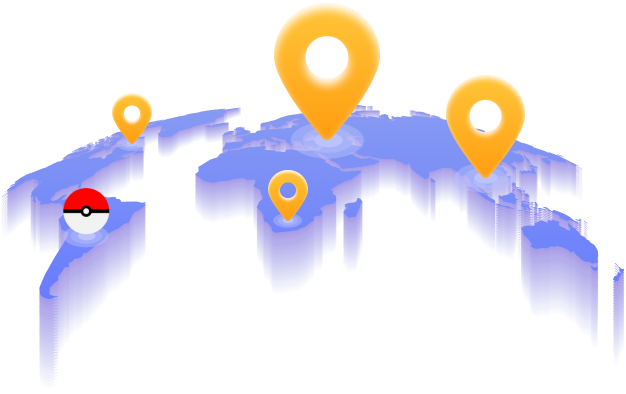
One Tap to teleport your GPS to any city or address without sharing your real address. Grindr will show profiles from your fake location as if you were actually there.
2. Match with people anywhere
If you are bored with the same local faces, changing your GPS to another city or neighborhood instantly refreshes your match grid. You’ll see and be seen by new people, but Grindr will only show your fake location—not where you actually are. This way, you expand your dating pool without compromising your privacy.
3. Compatible with top location-based dating apps
MocPOGO works perfectly with Grindr, Tinder, Bumble and more dating platforms that rely on GPS data. One powerful tool meets all your location privacy and dating needs across multiple apps.
4. Save favorite locations & quick switching
Easily record your used fake locations and bookmark frequently visited cities. You can switch between different GPS spots in one click anytime.
How to Change Location on Grindr with MocPOGO
Step 1 Download and install MocPOGO app on your iPhone or Android.
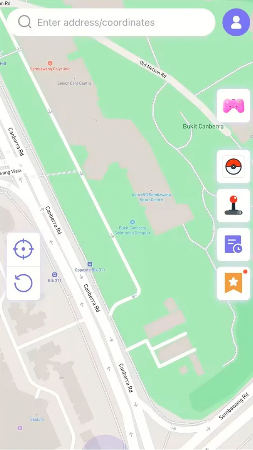
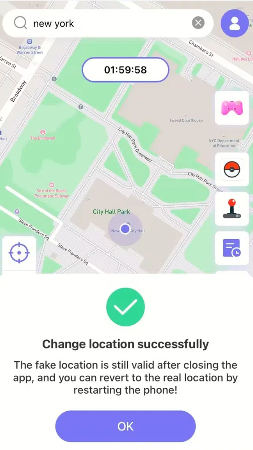
Step 2 Search for your target location in the search bar.
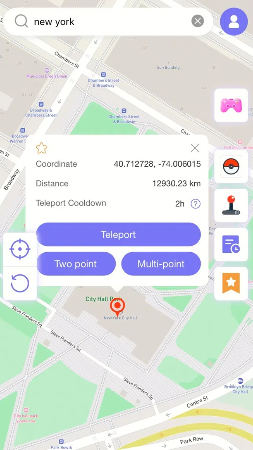
Step 3 Click Teleport to move your GPS to that location.
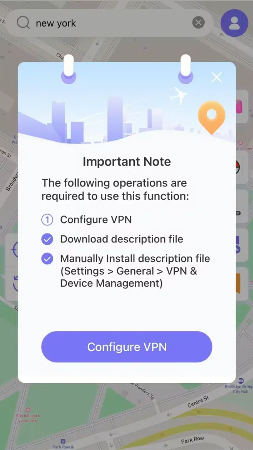
Step 4 MocPOGO for iOS will ask you to configure VPN, click on “Configure VPN” to go on.
Step 5 Your location will be changed to there instantly. Open Grindr, it will now show profiles from your chosen location.
Method 3. Change IP Address with a VPN
A VPN routes your internet traffic through a server in another location and masks your IP address. This is a legitimate privacy tool, but its effectiveness on Grindr is more limited than many users expect.
Steps to use a VPN with Grindr:
- Download a reputable VPN app such as NordVPN or ExpressVPN.
- Open the app and select a server in your preferred country or city.
- Connect to the VPN.
- Open Grindr.
The key limitation:
A VPN changes your IP address, not your GPS coordinates. Grindr primarily relies on GPS, not your IP, to determine your location. So while a VPN adds IP‑level privacy and encrypts your traffic, it won’t stop Grindr from reading your actual GPS signal.
Hiding your location on Grindr with a VPN alone is largely a misconception. If location services are enabled, Grindr will still show your real position—no matter which VPN server you use. A VPN works better as a secondary privacy layer alongside another method, not as a standalone GPS solution.
Method 4. Upgrade to Grindr Unlimited (Incognito Mode)
Grindr’s top subscription tier includes an Incognito feature that gives you more control over your visibility. This is the official, built‑in way to browse with more privacy.
Steps to activate:
- Open Grindr and tap your profile icon.
- Select the Unlimited subscription option.
- Complete your purchase through the App Store or Google Play. All Grindr Unlimited subscriptions renew automatically until canceled.
- Once subscribed, find the Incognito toggle in your profile settings and turn it on.
Pricing overview:
Grindr Unlimited ranges from $27.99 to $44.99 per month, depending on the plan. Grindr XTRA, the lower tier, costs between $14.99 and $22.99 per month and is aimed at users who mainly want an ad-free experience.

What Incognito Mode actually does:
Incognito on Grindr controls who can see your profile, not your GPS data. Your account remains connected to your real location. You are paying for visibility control, not location masking. Hiding your location on Grindr completely is still not possible through this method alone.
The Unlimited plan is worth considering if you want profile‑level privacy alongside other premium features. But if hiding your exact GPS position is your priority, this method alone does not fully solve the problem.
Part 3. FAQs about Grindr Location
Still unsure how Grindr handles your location? Below are answers to the most common questions.
Q1. Does Grindr show your location when you are offline?
Grindr typically holds your last known position even when the app is closed. Your profile can continue to appear in nearby grids for some time after you go offline, using your most recent recorded coordinates.
Q2. Can your Grindr location display wrong information?
Yes. GPS accuracy can be affected by building interference, weak satellite signals, and network issues. Grindr location might be off by a few hundred meters in dense urban areas or when indoors.
Q3. Can others track you using Grindr?
With enough data points, a determined person can triangulate your position using the distance information shown on your profile. This is called trilateration, and it’s one of the main reasons privacy-conscious users go beyond simply toggling the distance display.
Q4. Can users view your Grindr account when you have location off?
It depends on the method used. If you disable device-level location services, your profile may freeze at your last location or become harder to find for local users. If you use MocPOGO to set a fake location, your profile stays fully active and visible—appearing from wherever you set your fake GPS position.
The Best Method Depends on What You Are Protecting Against
If you want to hide your exact whereabouts on Grindr while staying fully active, spoofing your GPS is always the smartest choice. For solid GPS privacy, MocPOGO Location Changer enables you easily fake location on Grindr without turning off any app functions. It reroutes your real GPS data, keeps your profile connected and visible, and gives you full control over the location you show to others.
Give MocPOGO a try now to safeguard your real location on Grindr with minimal effort.