

Real Solution: How to Fake Locaiton on PC

Your location is more exposed than you realize. Every time you’re online, your Windows PC shares data that advertisers and trackers use to pinpoint your location, often without your consent. This can lead to intrusive ads or frustrating regional blocks on streaming services.
Whether you need to fake location on PC for app development, accessing geo-restricted content, or simply reclaiming your privacy, location spoofing isn’t just for smartphones. This guide explores effective methods to fake location for PC, ranging from quick browser adjustments to dedicated GPS spoofing software, helping you take control of what the digital world sees — not where you really are.

Part 1. Is There a Way to Change Your Location on PC?
Yes, absolutely. While most PCs lack GPS chips, they determine your position by “cheating” — cross-referencing your IP address and nearby Wi-Fi signals against massive location databases. Windows 10 and 11 use the Windows Location Service to triangulate your coordinates based on what your device “sees” around it.
To fool your system, you must override the Geolocation API that apps and browsers use to track you. By using browser tweaks or specialized software, you can feed Windows a fake GPS location. Once you provide these alternative coordinates, your system “buys” the lie, reporting that you are in Tokyo or London while you remain on your couch. This effectively breaks the tracking link, forcing apps to recognize your spoofed spot instead of your actual building. It is a straightforward way to reclaim your digital privacy.
Part 2. Can Fake PC Location be Detected?
Detection depends entirely on the quality of your tools. Basic VPNs or low-quality browser extensions often leave inconsistencies that alert sharp-eyed websites. For instance, a red flag appears when your IP address indicates one country while your GPS coordinates point to another.
Professional GPS spoofers for PC mitigate this risk by operating at the system level. These tools maintain data consistency across your IP, device sensors, and movement patterns, making the deception difficult to uncover. The primary risk involves “teleporting” — instantly moving from Tokyo to Paris — which violates cooldown rules on high-security platforms.
To stay safe, choose professional software that avoids detectable traces. By avoiding impossible movements and ensuring your digital signals align, you can effectively mask your presence without triggering security alarms. Using high-quality tools ensures your spoofed location remains believable and your privacy stays intact.
Part 3. How to Fake Location for PC
Browser-based methods are fine for a quick change, but they often fail to fool complex apps or bypass system-level tracking. If you need a more robust solution that stands up to scrutiny, professional software is the way to go. These tools handle the technical heavy lifting, ensuring your coordinates, IP, and device signals stay perfectly synchronized.
One of the most reliable options is MocPOGO PC Location Spoofer. It allows you to teleport your digital presence anywhere in the world with a single click. Unlike basic extensions, it offers advanced features like a GPS joystick, realistic movement simulation, and a cooldown timer to help you avoid detection.
Method 1. Fake Location for PC Using Browser Developer Tools
Built-in developer tools in Chrome, Edge, and Firefox offer a quick way to simulate a different location without extra software. By accessing the “Sensors” tab in the developer tools panel, you can manually override your geographical coordinates. This method is ideal for testing localized website content or bypassing simple web-based regional filters. Keep in mind that the spoofing only works while Developer Tools remains — closing it reverts your location.

Cons:
- Tab-specific: The fake location applies only to the active tab and resets once you open a new window.
- App incompatibility: Desktop applications like Spotify or Maps ignore these browser settings and detect your true location.
- Easy to detect: Websites can flag mismatches between your spoofed coordinates and your real IP address.
Method 2. Fake Location on Windows via Browser Extensions
Browser extensions are a step up from developer tools, offering a more convenient way to change your location on your computer as you browse. These tools inject scripts into web pages to override your browser’s native geolocation function.

Cons:
- Browser-only: The location change is limited to your web browser and won’t affect other desktop applications.
- Script detection: High-security websites can often detect the script injections used by extensions and block access.
- Privacy risks: Using poorly-vetted extensions can expose your browsing data to third-party developers.
Method 3. 100% Working Location Spoofer PC: MocPOGO
For users who need a comprehensive and stable solution, MocPOGO is the definitive location spoofer that Windows users rely on. Unlike basic browser overrides, this professional-grade software changes your GPS coordinates at the system level, ensuring that every application on your computer (and your connected mobile devices) recognizes the new location.

168,282 people have downloaded it.
- Change GPS location on iOS device without jailbreak.
- Simulate GPS movement with custom speeds.
- Change the location of all location-based games/apps.
- Support GPS joystick to play AR game on PC.
- Multi-Device control up to 15 devices.
- Support the latest iOS 26/Android 16.
Below are the key features that make MocPOGO the most effective tool for managing your digital presence.
Key features of MocPOGO for PC location spoofing
1. One-click teleport
Enter any address or coordinates, click “Go” – your GPS instantly jumps to that location. No complex setup. This is ideal for bypassing geo-blocks.
2. Joystick control
Precision is vital for AR gaming, and MocPOGO provides a built-in virtual joystick for real-time movement. This feature allows you to change direction and navigate through streets manually on the map. It offers a 360-degree range of motion, making it easy to play games like Pokémon GO from your desk.
3. Simulate realistic movement
To avoid detection by high-security apps, you can create custom walking, biking, or driving routes. You have the flexibility to set speeds between 3.6 km/h and 120 km/h, ensuring your movement appears organic.
4. Built-in cooldown timer
Safety is a priority when using a location spoofer for games like Pokémon GO. The integrated cooldown timer calculates the necessary waiting period between different locations based on the distance traveled. By following these prompts, you can avoid “soft bans” and ensure your account remains in good standing.
5. Bluetooth mode
MocPOGO’s Bluetooth mode allows you to change your iPhone’s GPS location using an Android device (or directly from your computer over Bluetooth). This method works with the official Pokémon GO app—no modified versions, no jailbreak.
6. Multi-device support
Power users can manage the GPS locations of up to 15 different devices simultaneously from a single computer.
7. Save favorite spots
If you frequently visit specific virtual locations or use certain routes for farming in games, you can save them to your “Favorites” list. This saves you the time of searching for the same address repeatedly and makes your spoofing workflow much faster.
How to use MocPOGO to fake location on PC
Using MocPOGO is straightforward, even if you aren’t a tech expert. By following a few simple steps, you can override your system’s coordinates and place your virtual presence anywhere in the world.
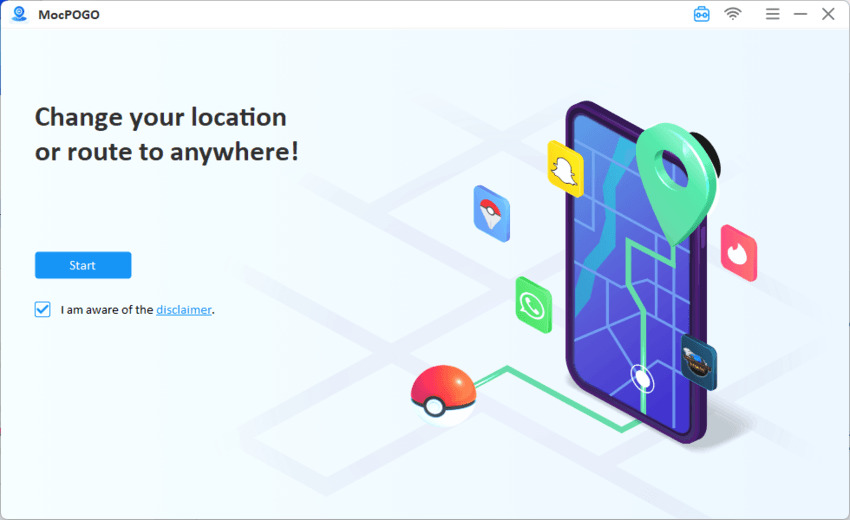
Step 1 Download and launch MocPOGO on your Windows PC. Click the “Start” button.
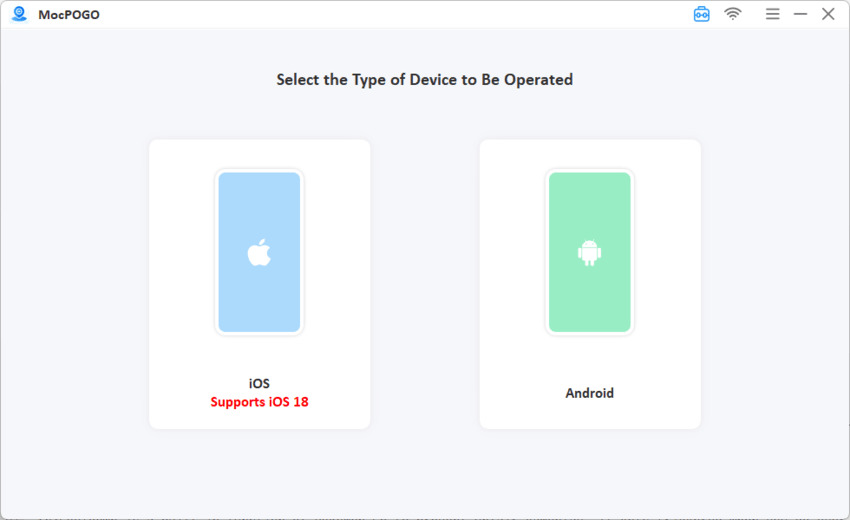
Step 2 Connect your device and then select Android or iOS.
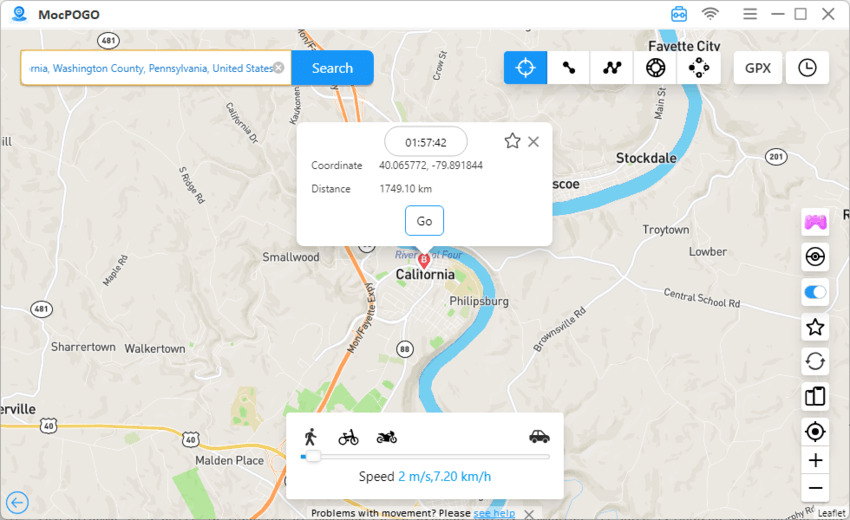
Step 3 Enter a city name or specific coordinates into the search box in the upper left corner.
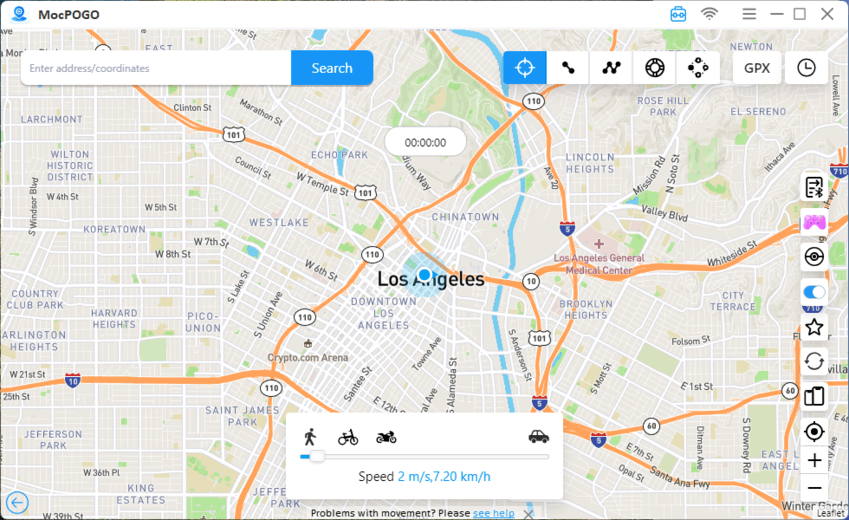
Step 4 Click the “Go” button to teleport to the selected location. Your location on PC will be changed to the selected location instantly.
Part 4. FAQs about Faking Location on PC
Q1: Can I fake location on PC via Windows settings?
No, not really. The “Default Location” in Windows is only a fallback and does not override IP or Wi-Fi tracking. To truly trick apps, you need a tool like MocPOGO that intercepts location data at the system level.
Q2: Will I get banned for changing my location?
You can avoid bans by using professional software like MocPOGO, which includes a cooldown timer and realistic movement simulation. Bans typically only occur if you “teleport” instantly across huge distances, violating platform security rules.
Q3: Is there a completely free method for spoofing location on PC?
Browser developer tools are free but limited to a single tab and easily detected by advanced sites. For stable, system-wide spoofing across all apps and games, a professional tool is the most reliable investment.
Q4: Do I need to jailbreak or root my phone?
No. MocPOGO allows you to change your location on both iOS and Android without jailbreaking or rooting your device. You simply connect your phone to your PC and manage your coordinates safely through the software interface.
Q5: Is changing my location illegal?
Changing your location is generally legal for privacy and app testing. However, using it to commit fraud or violate a specific platform’s Terms of Service can lead to account suspensions or other restrictions.
Conclusion
Changing your computer’s location isn’t just possible — it’s surprisingly easy. Built-in browser tools offer a quick, free way to fake your location on PC for basic web tasks, but they often fall short in more demanding scenarios.
High-stakes gaming, professional app development, and multi-account management require a robust, seamless solution — that’s where a dedicated location spoofer for Windows becomes essential. MocPOGO stands out with system-wide precision and safety features that simple browser tweaks can’t match. Ultimately, you deserve the final say in where you appear online. With the right tools, you can take back control and decide exactly how much of your real-world footprint stays visible.