

How to Stop Sharing Location on Life360 Secretly in 2026 [Updated]

Life360 is a popular family-tracking app that helps loved ones stay connected through real-time location sharing. While it offers safety and peace of mind, many users wonder how to stop sharing their location on Life360 for privacy reasons.
Whether you’re seeking more privacy or more control over your location data, the real challenge is doing so without triggering alerts or drawing attention.
So, can you actually stop sharing your location secretly? What happens when you do? Let’s explore further.

Part 1: Does Life360 Notify When You Stop Sharing Location?
Yes, in most cases, Life360 does notify when you stop sharing location.
If you disable location sharing directly in the app, other members in your circle may see status updates such as:
- “Location sharing paused”
- “No location found”
- “Location permissions turned off”
This means that simply turning off location services or stopping sharing isn’t completely hidden. While Life360 may not always send a direct push notification, the change is still visible to others in the circle.
So, if you’re asking: “Does Life360 send a notification when you stop sharing location?”
The answer is: Yes (indirectly). Others will notice through status changes, even if they don’t get an explicit alert.
That’s why many users look for ways to stop sharing location on Life360 without notifying, which we’ll explore in the next sections.
Part 2: Is There a Way to Stop Sharing Life360 Without Notifying Them?
Many users assume there’s a simple trick to disappear from Life360 without anyone noticing. Unfortunately, most “quick fixes” you find online don’t actually work the way people expect.
Let’s have a look at the most common methods and why they fail.
1. Disable location sharing directly in Life360
Turning off location sharing inside the app is the most obvious method—but it’s also the easiest to detect. Life360 will update your status, clearly indicating that location sharing has been paused.

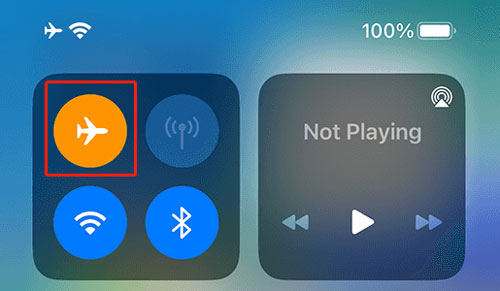
2. Turn on Airplane mode
This cuts off internet and GPS signals, but your status will show issues like “No network” or “Location unavailable.” It doesn’t hide anything, but rather makes it obvious something is off.
3. Turn off location services
Disabling GPS permissions might seem like a workaround, but Life360 will still display that your location access is turned off. Circle members can easily notice this change.

4. Use a VPN service
VPN only changes your IP address, not your actual GPS location. Since Life360 relies on GPS data, this method won’t help you hide or change your real location.
5. Delete your Life360 account
While this technically stops location sharing, it’s not subtle at all. Your account disappears from the circle, making it immediately obvious that you’ve left.
How Life360 Actually Notifies Others
Life360 is designed to maintain transparency within circles. Instead of always sending direct alerts, it uses status indicators and real-time updates that everyone can see.
So even if you don’t receive a push notification, other members may notice:
- Missing or frozen location updates
- “Location paused” or “No location found” messages
- Sudden inactivity or connection issues
This means there’s no truly “invisible” way using basic settings. Any direct attempt to stop sharing will leave clear signs.
That’s why users looking for how to stop sharing location on Life360 without notifying need more advanced solutions—which we’ll cover next.
Part 3: The Most Reliable Way to Stop Sharing Location on Life360 Without Alerts
As we’ve seen, most common methods fail because Life360 is designed to detect any disruption in location sharing. If you simply turn things off, it creates visible signals that others can notice.
So, is it possible to stop sharing your location on Life360 without anyone noticing? The most reliable solution is to use a professional GPS spoofing tool like MocPOGO.
Instead of stopping location sharing (which triggers alerts), MocPOGO replaces your real location with a virtual one. This means Life360 continues to receive location data—just not your actual location—so no warnings or suspicious status updates appear.

168,282 people have downloaded it.
- Change GPS location on iOS device without jailbreak.
- Simulate GPS movement with custom speeds.
- Change the location of all location-based games/apps.
- Support GPS joystick to play AR game on PC.
- Multi-Device control up to 15 devices.
- Support the latest iOS 26/Android 16.
Outstanding Features of MocPOGO to Stop Life360 Location Sharing
1. No Life360 Notifications Are Triggered
MocPOGO works by feeding Life360 a stable, fake GPS location. Since the app still receives location data normally, it doesn’t show “location paused” or “no location found”—helping you avoid detection completely.
2. Precise GPS Spoofing
You can set your location to any place in the world with high accuracy. Whether you want to stay in one spot or appear in a different city, MocPOGO ensures your virtual location looks real and consistent.
3. No Jailbreak or Root Required
Unlike many risky tools, MocPOGO works without needing to jailbreak iPhones or root Android devices. This keeps your device secure while still giving you full control over your location.
4. Real-Time Simulation
MocPOGO allows you to simulate movement naturally, such as walking or driving routes. This makes your location behavior look realistic instead of static or suspicious, further reducing any chance of detection.
Why MocPOGO Works When Others Fail
Instead of trying to “stop” sharing—which Life360 can easily detect—MocPOGO takes a smarter approach: it keeps sharing active but changes what is being shared. That’s why it’s considered the most effective way to secretly stop sharing your real location on Life360 without alerts or suspicion.
Step-by-Step Guide to Use MocPOGO
If you’re wondering how to stop sharing location on Life360 without alerts, MocPOGO makes the process simple. Instead of turning off location (which triggers warnings), you’ll replace your real location with a virtual one.
Follow this easy 3-step guide:
Step 1: Download & Install MocPOGO
Download MocPOGO on your computer (Windows or Mac) and install it.
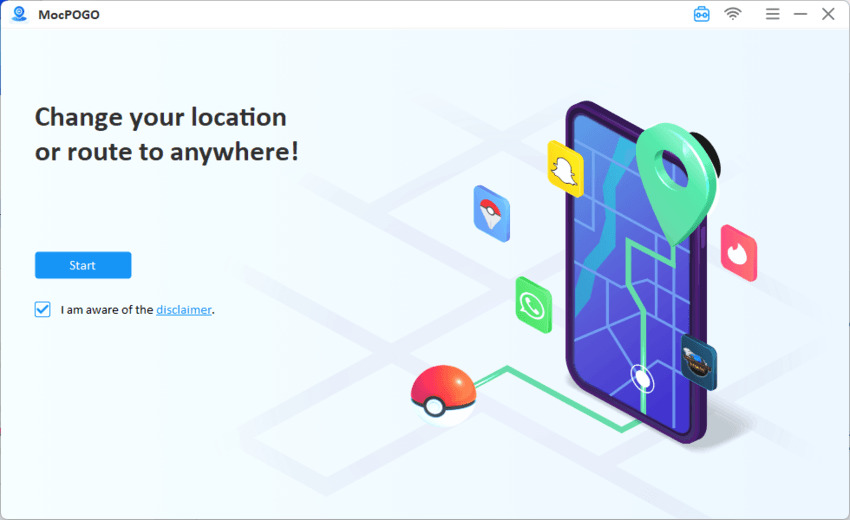
Step 2: Connect Your Device
Launch the software, then connect your iPhone or Android device using a USB cable. Then click “Next”.
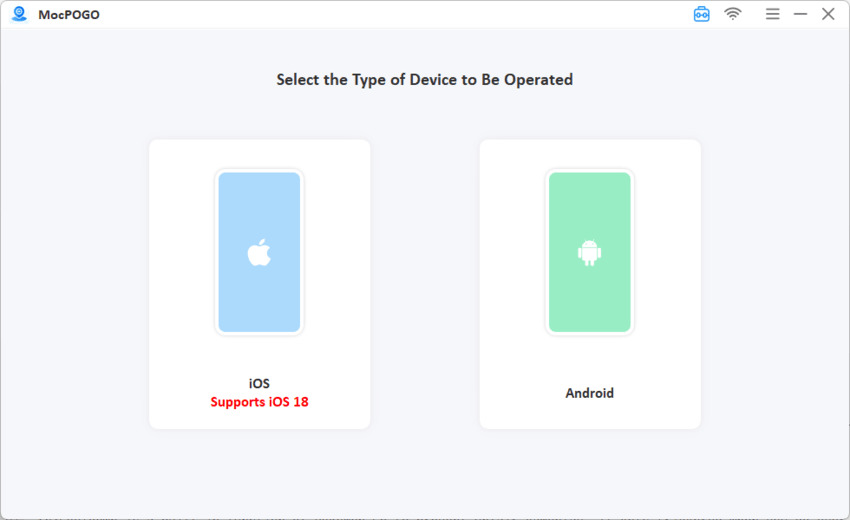
Step 3: Choose a Fake Location
Once connected, select “Teleport Mode” on the map interface. Enter any location in the search bar and select your desired destination. Click the “GO” button to instantly change your GPS location. Now open Life360 app and your new location will appear in the app instead of your real one.
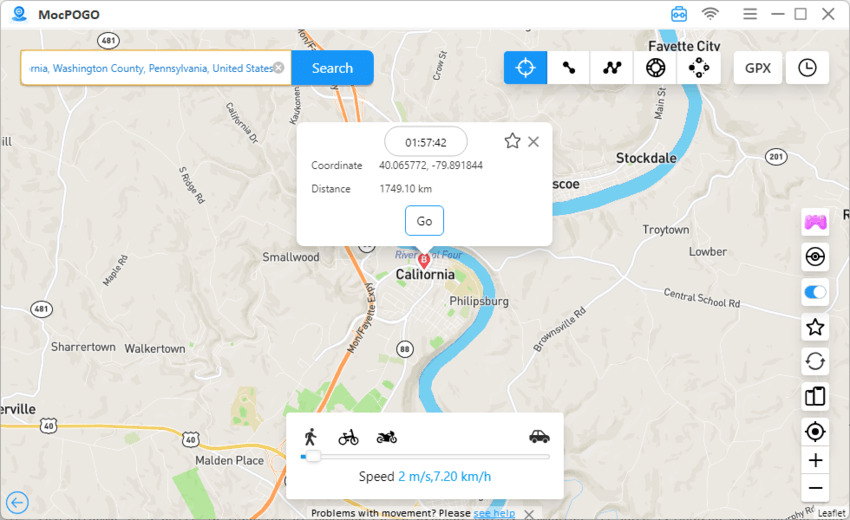
Now, location changed on Life360 App:

Conclusion
Most native methods don’t actually work if your goal is to stay unnoticed. Instead, they create visible status changes that can lead to questions.
If you’re looking for how to stop sharing location on Life360 without notifying, the only truly effective approach is to avoid stopping location sharing altogether. Instead, you need a solution that keeps the app running normally while protecting your real location.
That’s where MocPOGO stands out. It allows you to secretly hide your location on Life360 by replacing your real GPS data with a virtual one without triggering alerts or warnings.