


[Solved] How to Change iClicker Location in 4 Excellent Methods

 MocPOGO
MocPOGO is the best location changer to change iClicker location for iOS & Android without anyone knowing.
If you’re having issues with iClicker due to location-based settings, you’re not alone. Many students face issues accessing quizzes, attendance, or polls when they’re outside the approved classroom or campus area. Fortunately, changing your iClicker location can easily solve these issues. In this guide, we’ll introduce you to the top 4 methods on how to change iClicker location.

Part 1. What Do You Know about iClicker
What is iClicker
iClicker is a student engagement platform designed to help educational institutions conduct online classes, receive feedback, track attendance, and use polls, quizzes, or assignments to interact with students, among other activities.
Beyond basic polling, iClicker also supports anonymous responses to encourage honest participation, gradebook integration with popular Learning Management Systems (LMS) like Canvas and Blackboard, and detailed performance analytics for instructors.
How Does iClicker Geolocation Work?
iClicker geolocation is designed to ensure students are physically present in the correct location, such as a classroom or campus, when participating in polls, quizzes, or attendance activities. The iClicker student app requests location permissions from your device, like GPS and network data, allowing the app to determine your exact real-time location.
Why Do Users Like Changing the iClicker Location
Changing the iClicker location can offer many benefits, giving users more flexibility and control over how they use the app. Here are some key reasons why students prefer to change iClicker location.
- ■ As mentioned earlier, iClicker uses real-time location when participating in polls, quizzes, or attendance activities. Student can change their location and participate in iClicker events from any part of the world.
- ■ Location changing allows students to mark their attendance from anywhere, eliminating the need to be physically present in a specific location.
- ■ Students can easily engage in iClicker activities during travel, emergencies, or unexpected situations.

Part 2. How to Change iClicker Location with 4 Excellent Methods
Below, we have mentioned the top 4 methods on how to change location on iClicker. With these methods, students can easily change the iClicker location.
1. In Settings
IWhen there’s an issue with iClicker location, the first and easiest method to change it is via device settings. Users can enable the location service from the settings of their smartphone, tablet, or laptop. Here is how to do it:
✅ For Instructors
Step 1 Open your device’s “Settings” and select the “Privacy & Security” option.
Step 2 Choose “Location Services” and enable it.
Your location on iClicker will automatically update. Instructors can set their current location as the designated classroom or university location in iClicker.
✅ For Students Using an iPhone
If you’re an iPhone user, then use the instructions below to update your location in iClicker:
Step 1 Unlock your iOS device and go to “Settings.”
Step 2 Choose the “Privacy & Security” option and select the “Location Services” option.
Step 3 Enable the “Location Service” option. Next, hit the “Always” button.

✅ For Students Using an Android
Android users can use the instructions below to change the iClicker location:
Step 1 Open “Settings” and go to “Location.”
Step 2 Turn Location on. Next, tap App access to location.

Step 3 Find and select iClicker. Next, choose “Allow all the time.”
2. Use a Safe Location Changer – iOS & Android Supported
One of the best ways to change location on iClicker is by using a third-party location spoofing tool. MocPOGO is one of the safest and reliable location changers available. With the help of this tool, users can alter their locations on apps like iClicker without getting detected. The best part of MocPOGO is that it is available on both Android and iOS devices. It offers a user-friendly interface, so even beginners can change their location in one click — no technical knowledge required.
168,282 people have downloaded it.
- Instantly change iClicker location on iPhone without jailbreak.
- Quickly change iClicker location on Android without root.
- Safely change location on iClicker without anyone knowing.
- Support all iPhone & Android devices and versions, like iPhone 17, Samsung, iOS 26 and Android 16.
- Change GPS location of all location-based games/apps, like Pokemon Go, Zenly and Kippo, etc.
How to Change iClicker Location for iOS & Android with MocPOGO
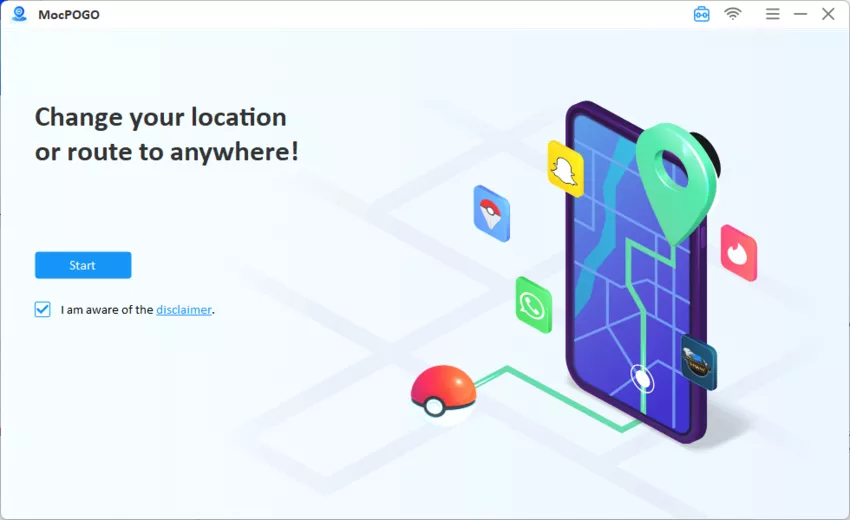
Step 1 Download, install, and launch MocPOGO on your PC, then click the “Start” button.
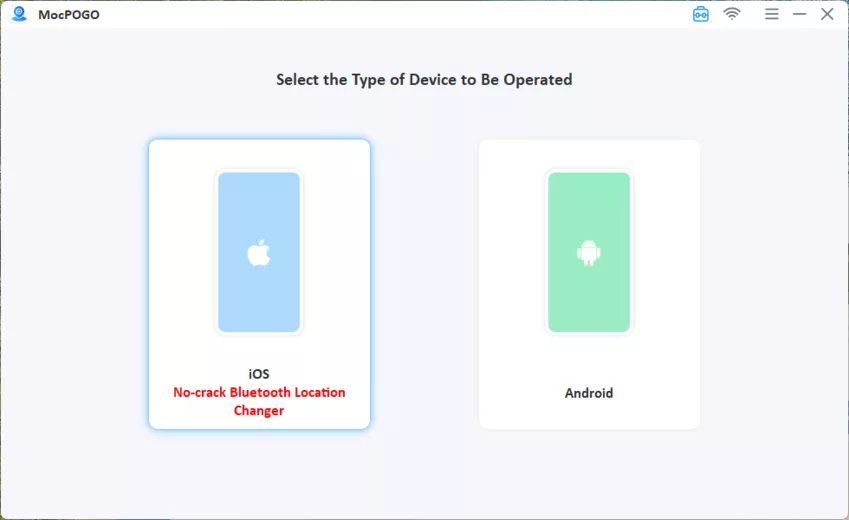
Step 2 Connect your iOS or Android device using a USB cable and follow the on-screen instructions to complete the connection process.
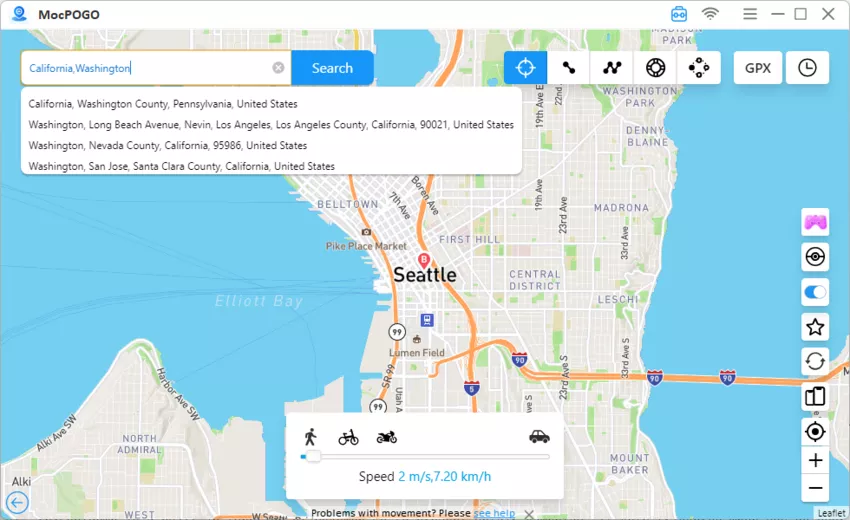
Step 3 Once your device is successfully connected, click on the “Teleport” option available at the top right corner. Enter the location in the search box and hit the “Search” option to choose the location.
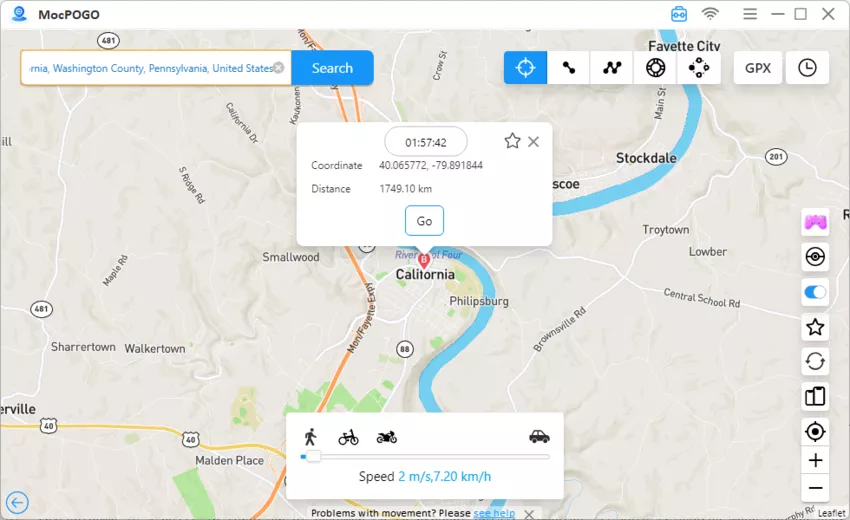
Step 4 Finally, click on the “Go” button, and MocPOGO will change your location on iClicker within seconds.
Note:
Please also feel free to download MocPOGO iOS and Android app to change iClicker location to anywhere.
3. iTools Virtual Location – Only iOS Supported
The next method to change location on iClicker is by using iTools Virtual Location. It is another third-party location spoofing tool that enables users to change iClicker’s location on iOS devices. You can set a fake location, create routes, and move on the map without physically traveling. This makes it useful for participating in iClicker attendance, polls, or quizzes when you’re not in the actual classroom or on campus.

How to Change iClicker Location by iTools Virtual Location
Step 1 Download iTools on your desktop and launch it. Connect your iPhone to the PC using a USB cable. Unlock your iPhone and tap the “Trust This Computer” option.
Step 2 Next, navigate to “Toolbox” and select the “Virtual Location” option. Enter your desired location in the search box and hit the “Done” button.

Step 3 Press the “Move Here” button to alter your location in real-time on apps like iClicker, Pokémon Go, and Snapchat.

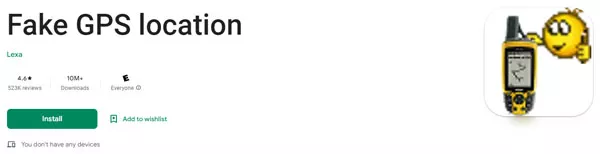
4. Fake GPS Location App by Lexa – Only Android Supported
Android users can use Fake GPS Location by Lexa to change the iClicker location in real-time. Lexa is an Android-supported app that only allows you to change location on Android devices. You can download the app from the Google Play Store for free. The app supports all Android location-based apps, including iClicker, Snapchat, Pokémon Go, and WhatsApp. To change location using Lexa, follow the steps mentioned below:
How to Change iClicker Location with Fake GPS Location App by Lexa
Step 1 Download the Fake GPS Location app from the Google Play Store and launch it.
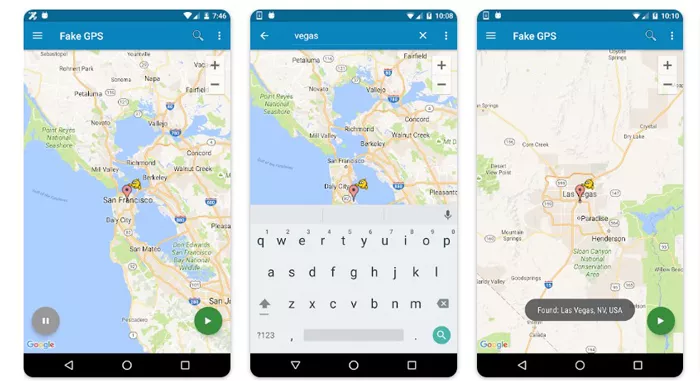
Step 2 A virtual map will open on your screen. Choose the desired location on the map and click on the “Go” button.
Step 3 Within seconds, Fake GPS Location will change your location in real-time. The location on iClicker can also be changed.
Note:
- ⚠ Changing location using third-party tools is legal, but if you overuse it then it can be risky and may violate course policies. So never overuse those spoofing apps above to change iClicker location.
Part 3. Related Questions about How to Change iClicker Location
Q1: How to set the iClicker location?
iClicker uses device location to verify your attendance and more. Ensure that your device location is enabled to set the iClicker location. Here is how to do it:
- ■ Navigate to “Settings” and select the “Location” option.
- ■ Enable the location services and grant permission to iClicker.
- ■ This will automatically set the iClicker location.
Q2: Is the iClicker location locked?
Yes, iClicker location can be locked.
Q3: Does the iClicker check your location?
iClicker is a location-based app, and once you have granted the required permission, the app will check your location continuously.
Q4: Why is my location wrong on iClicker?
There could be several reasons why your location is wrong on iClicker. The reasons include:
- ⚠ The location feature is disabled on your device.
- ⚠ Accidentally activate the location spoofing app in the background.
- ⚠ Glitches and bugs within the iClicker app.
Conclusion
iClicker is an amazing student engagement app designed to help educational institutions. In this guide, we have mentioned the top 4 methods on how to change iClicker location. Among them, MocPOGO is the best option. With the help of this tool, users can change their real-time location on apps like iClicker with one click — no jailbreaking or rooting device required.